Testing your agent
Talk to your agent in the live Chat panel, Test or Training mode, replies streamed with every tool step visible, then fix answers on the Training tab.
Before you connect an agent to a real channel, you rehearse it. AnyBot gives you two surfaces for that, and they do different jobs: one is a live conversation, the other is a review screen. Knowing which is which saves a lot of confusion.
Two surfaces, two jobs
- The Chat with Agent panel: a live conversation you can have with the agent right now. This is the test chat.
- The Training tab: a review screen (Answer corrections) where you fix answers the agent has already given. It is not a chat.
They get mixed up because the chat panel also has a mode called "Training". Keep it straight: chatting happens in the panel; correcting happens in the tab.
The Chat with Agent panel
On wide screens (roughly 1280px and up) the panel sits alongside the editor tabs as a resizable side panel. On narrower screens it collapses to a Chat button that opens it as a sheet. Either way, it talks to the agent you're currently editing.
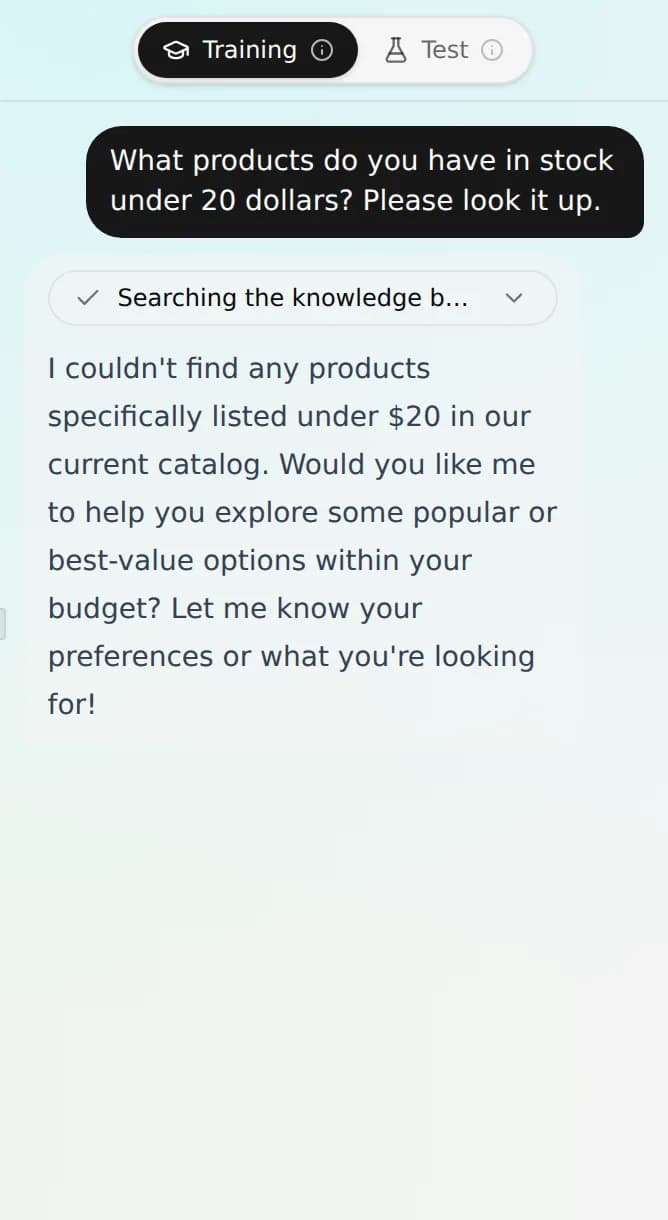
At the top of the panel is a two-way toggle:
- Test: chat as an end user would. The agent responds exactly as it would on your website or a messaging channel, with no admin context. Use this for a true customer-eye view.
- Training: chat as the workspace admin. The agent has full sight of your knowledge base, memory, and skill configuration. Use this while you're actively tuning behavior.
The panel opens in Training mode by default; flip to Test whenever you want the unfiltered customer experience.
Replies stream in token by token. When the agent uses a skill (a calendar lookup, a product search, a lead capture), that step appears inline as a visible pill, so you can confirm it called the right tool with the right inputs, not just that the final sentence reads well. From the panel you can also start a fresh conversation, switch or delete past sessions, attach a file, and stop a reply mid-stream if it heads the wrong way.
What to check
- Grounding: does it answer from your knowledge and memory, and decline to guess when it shouldn't?
- Tone: does it sound like your brand, per your behavior settings?
- Actions: when a tool step appears, did it do the right thing? Expand it and read the inputs.
- Handoff: does it escalate or hand off when it should?
Test it, step by step
- Open the agent. On a wide screen the Chat panel is already there; otherwise press Chat.
- Leave it in Test mode for a customer-eye pass, or switch to Training to probe with full context.
- Ask the questions a real customer would, including the awkward and out-of-scope ones.
- Watch each tool step as it streams. Expand any that look off.
- Found a problem? Adjust knowledge, guardrails, the model bundle, or its skills. Then start a new session and test again.
Because every change is auto-versioned, you can roll back in one click if a tweak makes things worse.
The Training tab: Answer corrections
The Training tab is a review screen, not a chat. It lists the corrections that guide this agent's answers, so you can review, edit, or delete them. Corrections come from real conversations: when the agent answers incorrectly, open that thread in the Inbox, choose Correct on its reply, and write the answer it should have given. Saved corrections land here, alongside the thumbs, resolution-rate, and top-unanswered analytics covered under Versioning & feedback.
Troubleshooting
- A reply never streams. Give it a moment. The panel watches for a stalled turn. If it stays stuck, start a new session and resend; a fresh conversation rebinds the stream.
- A tool step shows an error. Expand it to read the inputs. The fix is usually a skill that isn't connected or a required field the agent didn't collect, not the model.
- Test and Training modes answer differently. Expected: Training mode sees admin context, Test mode doesn't. Trust Test mode for what customers will actually get.
- There's no Training tab. It's flag-gated (see above). Testing still works through the Chat panel.
FAQ
Which mode should I ship-check in? Test. It mirrors the live channel with no admin context.
Do I have to use the Training tab to test? No. The Chat panel is the test chat; the Training tab is for correcting answers after the fact.
Where do corrections come from? From the Inbox, choose Correct on an agent reply. The Training tab is where you review and manage them.