Create your account
Sign up for AnyBot, verify your email, and land in your first space.
Creating an account takes a minute: enter your details (or use single sign-on where it's offered), confirm your email, and you land on a Create your workspace prompt where you start setting up your first space. If your operator has enabled captcha, you'll also pass a quick check before signing up.
Open it in AnyBotBefore you start
- A valid email address you can receive mail at (you'll confirm it).
- A password you'll remember. The form enforces a minimum length and flags it if it's too short.
- That's it. Creating the account itself takes no payment details. Your first workspace is a separate step. When you create it, the app shows the ways to get it started, including any no-cost start offered at that time. Paid plans go through checkout, where a card is collected.
Sign up, step by step
-
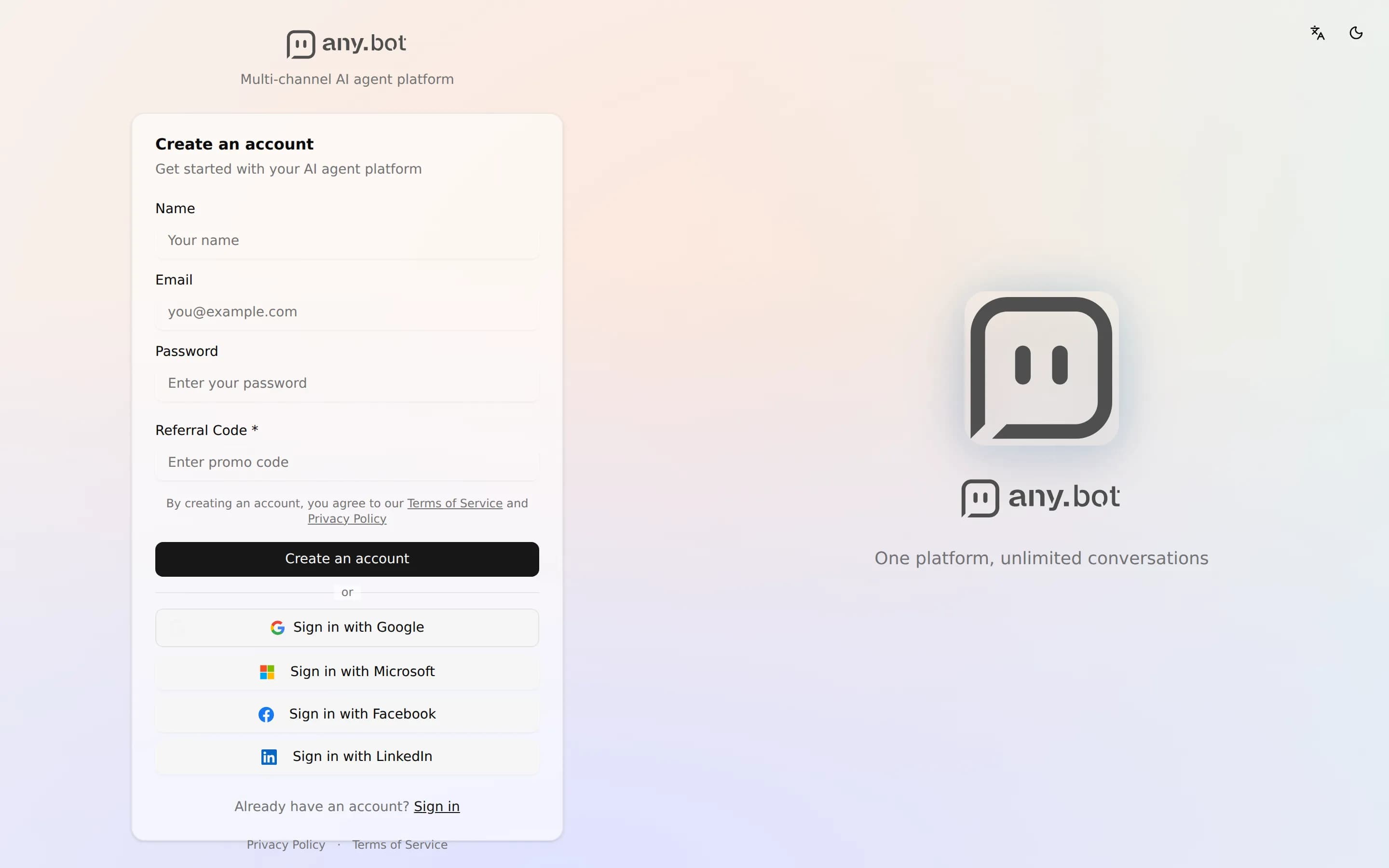
Go to the Create account page at app.any.bot/register and enter your name, email, and password.
-
If your operator has enabled captcha, complete any check it shows. Some captchas are invisible and verify automatically. It protects the platform from automated sign-ups. Most sign-ups won't see this at all, since captcha is off unless the operator configures a provider.
-
Review the Terms of Service and Privacy Policy links, then choose Create account. We email you a 6-digit code (see below). Once it's verified, you're signed in and land on a Create your workspace prompt where you start space setup.
Or use single sign-on
If a referral code is requested
Verify your email
When you choose Create account, we send a 6-digit code to the address you entered and show a Check your email screen. Enter the code and choose Verify and create account. Your email is proven before the account exists, which keeps your account secure and your address recoverable. The code expires after a short time; if it does, choose Send a new code. Typed the wrong address? Choose Use a different email.
Troubleshooting
- No code? Check spam, and confirm the address you typed. When the countdown ends, choose Send a new code, or choose Use a different email to fix the address.
- "Sign-ups are closed"? Your operator has paused new registrations. Try again later.
- Captcha won't pass? If your operator uses captcha and the check won't pass, reload the page and retry; some browser extensions can block the widget.
FAQ
Can I change my email later? Yes, from your account settings once you're in.
Do I need a space before I can do anything? No, after signing up you land on a Create-your-workspace prompt where you start space setup.