The dashboard tour
Find your way around a space, the sidebar groups, the space switcher, BotFather, the Setup Guide, and search.
Once you're inside a space, the left sidebar is your map. It's organized top to bottom: a search box, the Setup Guide, the space switcher, three space-scoped nav groups (Operate, Train, Admin), an Account group that stays the same across every space, and a pinned footer. Most items show a live count from the space you're in, and a few appear only for certain roles.
What's in the sidebar
The three space-scoped groups change with whichever space is active. Items are grouped by what you're trying to do:
| Group | Focus | Items |
|---|---|---|
| Operate | Running the space day to day | Overview, AI Agents, Inbox, Customer Support, Contacts, Leads, Meetings, Calendar, Team Chat, Products, Social Manager, Landing Page |
| Train | Teaching and extending your agents | Knowledge, Media, Integrations |
| Admin | Configuration and governance | Phone Numbers, Business Info, Brand Kit, Team, Activity |
Below those sit the parts of the sidebar that never change, no matter which space you're in:
| Location | Items | What they're for |
|---|---|---|
| Account group | All Spaces, Agents Market, BotFather, What's New | Jump across every space you belong to, browse ready-made agents, open the assistant, read release notes |
| Footer (pinned bottom) | Tasks, Settings, Support, Referrals | In-flight media jobs, your account settings, help, and inviting friends |

How it all fits together
The space switcher sits just below the search box and Setup Guide, and shows the active space's name, logo, and your role in it. Open it to search your spaces by name, switch (you land on the same section in the new space), or create a new one. A space that's still mid-setup shows an amber alert so you can finish it. Switching spaces re-scopes the whole Operate / Train / Admin block; the Account group and footer stay put.
Most nav items carry a small live count: AI Agents shows how many agents you have, Inbox shows unread conversations, Knowledge shows uploaded files, Team shows members. These read from your space's dashboard data, so they update as you work.
The Setup Guide
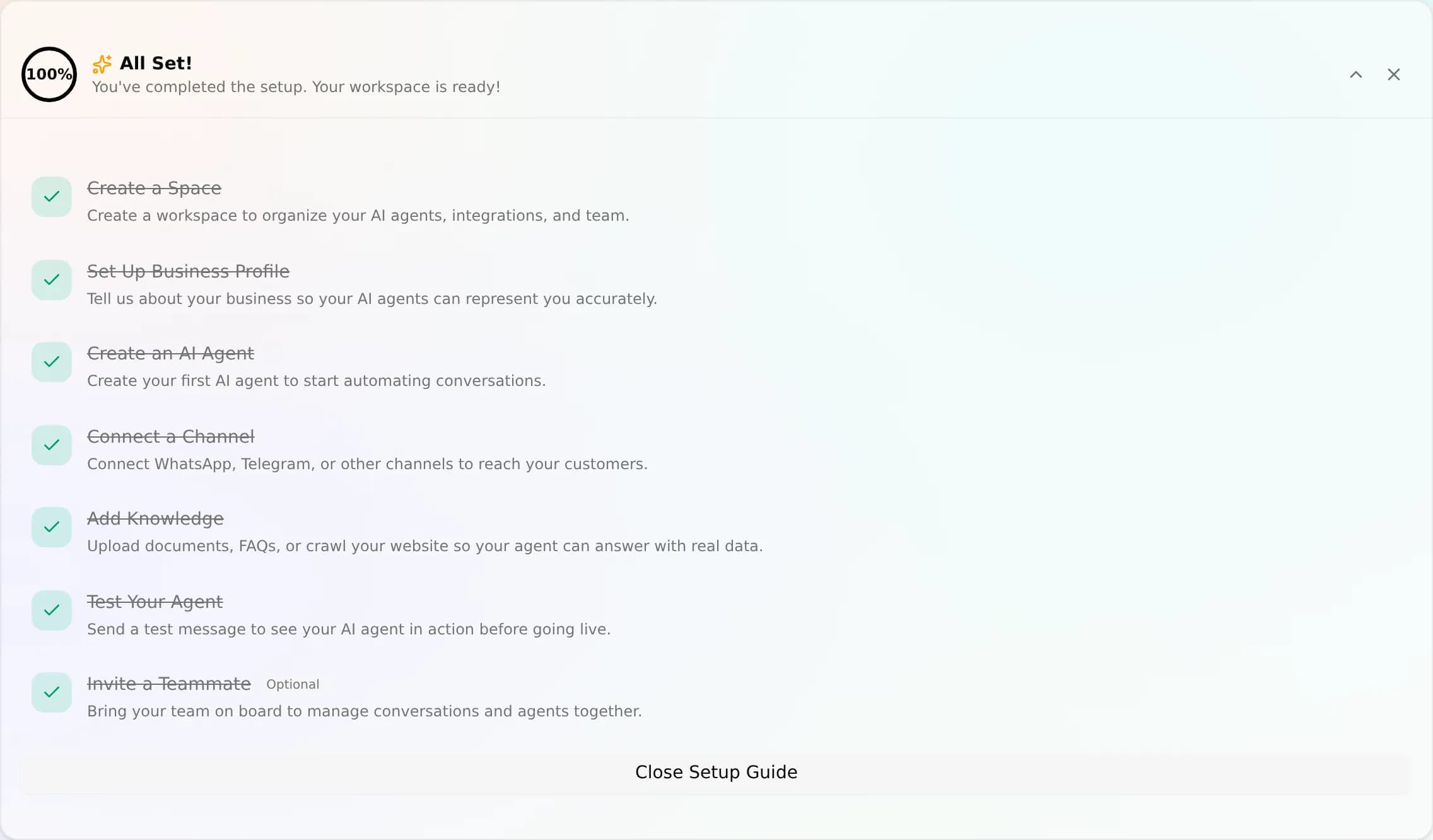
New spaces show a Setup Guide near the top of the sidebar (a rocket icon with a progress badge showing your completion percentage). It walks you through getting a space live, in order:
- Create a Space: the workspace itself.
- Set Up Business Profile: so agents represent you accurately.
- Create an AI Agent: your first agent.
- Connect a Channel: WhatsApp, Telegram, and other channels.
- Add Knowledge: documents, FAQs, or a website crawl.
- Test Your Agent: send a message before going live.
- Invite a Teammate: bring your team on board.
The guide tracks which steps are done and quietly disappears once you've completed the setup. You can reopen it any time from that sidebar entry. Opening it brings up the guide card, which shows your progress as an "X of Y steps" count alongside a progress ring.
BotFather: your in-app assistant
See the animated Ask BotFather button in the top bar? That's your in-app AI assistant. Ask it in plain English ("connect WhatsApp," "add these FAQs to my agent," "create a support agent") and it performs the action, showing each step. It also lives in the Account group as BotFather if you'd rather open it there. Learn more in What is BotFather.
Search
Open the space switcher and you'll find a search field at the top of its popover. Type into it to filter your spaces by name and jump straight to the one you want, handy once you belong to more than a handful of spaces. It matches on the space name as you type.
FAQ
Why do I see fewer items than a teammate? Some items are hidden by role (viewers don't see Customer Support, Team, or Activity) or by a feature flag (Brand Kit). You're seeing what your permissions allow.
Can I collapse the sidebar? Yes, the control at the bottom collapses it to an icon-only rail and expands it back.
What's the difference between the Setup Guide and BotFather? The Setup Guide is a fixed 7-step checklist for getting a space live. BotFather is a free-form assistant that can do those tasks, and many others, on request.