Create your space
A space is your isolated workspace. The 6-step wizard scans your site, builds a business profile, and hands you a working space in one session.
A space is a self-contained business environment: its own agents, contacts, leads, content, media, billing, team, and brand. Everything you do in AnyBot happens inside a space, and nothing leaks between spaces. This is the how-to for creating one with the 6-step Space Creation Wizard, which can scan your website (or read a document), build a business profile, suggest ready-made agents, and set your space's web address.
Open it in AnyBotBefore you start
- An account. Create your account and verify your email first. The wizard opens automatically for your first space.
- Optional but recommended: a website or a document. The wizard pre-fills your setup from either. A public site URL, or a PDF or image (a brochure, an "about" page, a company one-pager) up to the upload limit, works best.
- A few facts on hand in case the scan comes up short: your business name, a one-line description, and a contact email or phone.
Nothing here is required except the name. You can skip the scan and type everything manually.
What a space contains
A space is the isolation boundary for your whole operation. Each space owns, and never shares:
- Agents: the AI agents you build and train.
- Knowledge: the documents and crawled pages your agents answer from.
- Contacts & leads: everyone who talks to your agents, and the leads they capture.
- Content & media: generated posts, images, video, avatars, and voices.
- Billing: its own AnyBot Token (ABT) allowance, metered across 6 ABT pools.
- Team & roles: the people you invite and their permissions.
- Brand: logo, colors, and voice applied across the space.
- Audit trail: a record of every change made inside it.
That isolation is why agencies run one space per client: work, data, and billing stay cleanly separated. See Spaces & isolation for the full model.
The wizard, step by step

-
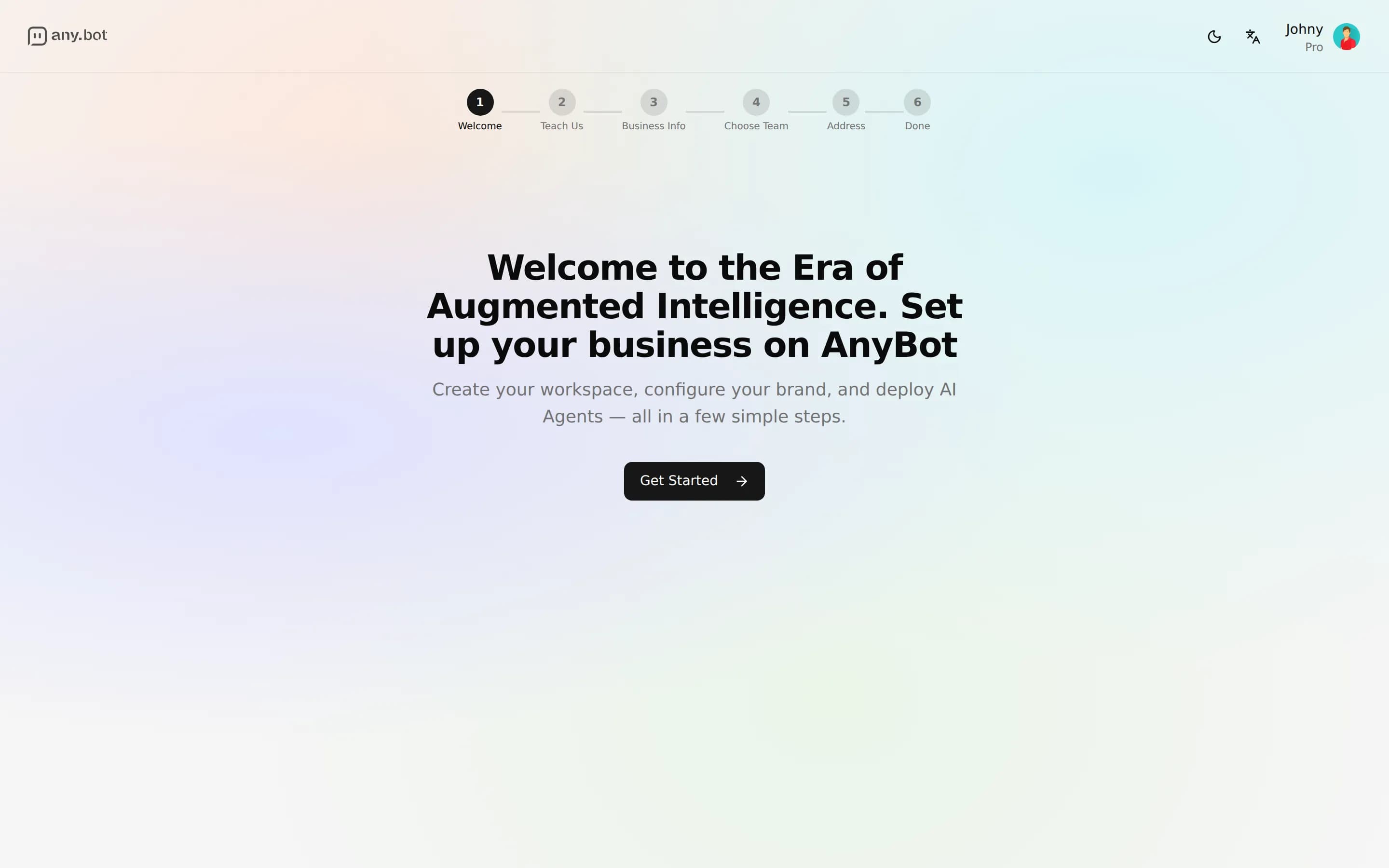
Welcome: a short intro that sets up what's coming. Hit Get Started to begin.
-
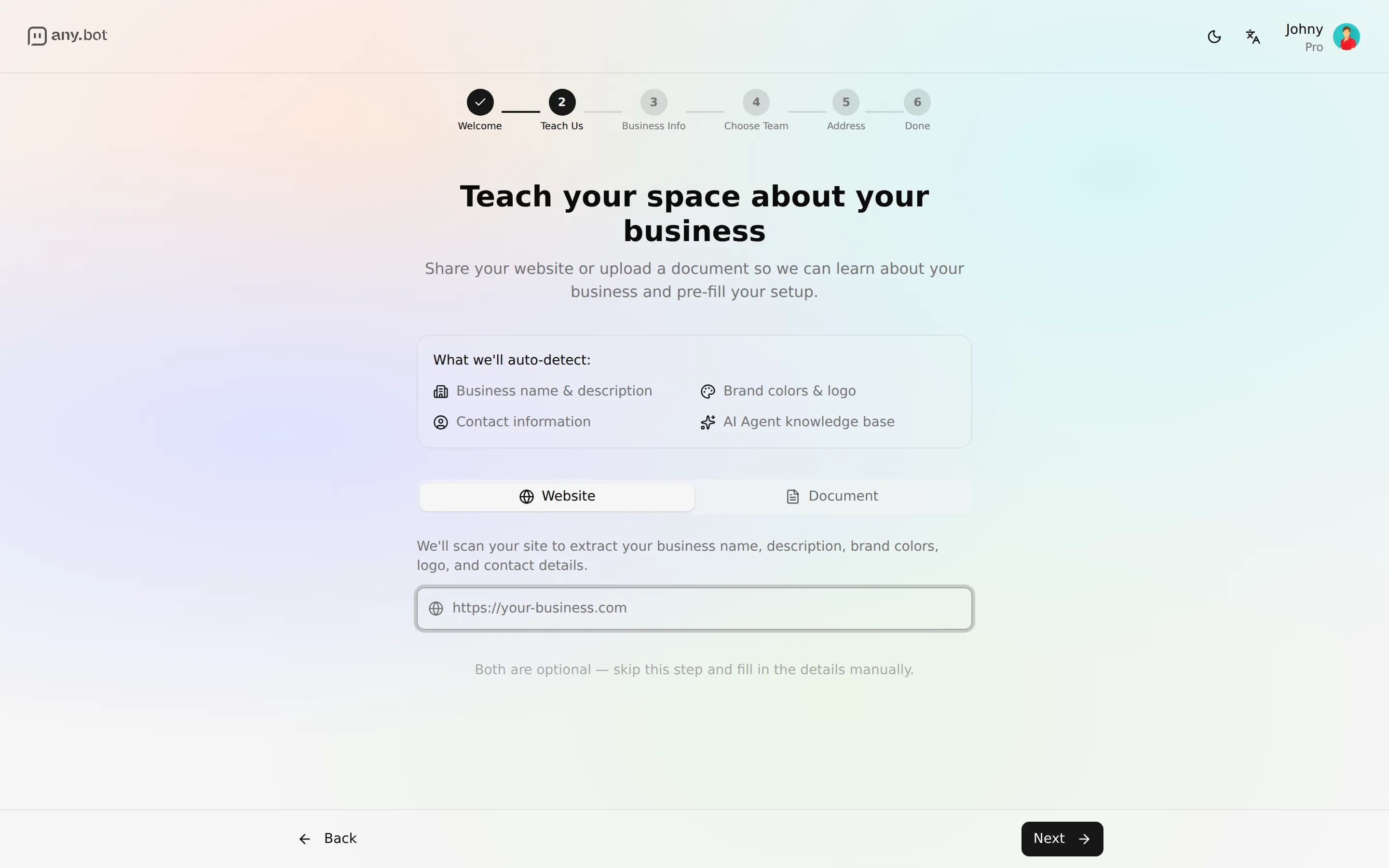
Teach it about your business: paste your Website URL or upload a Document. When you continue, your space is created here, and AnyBot scans what you gave it, auto-detecting your business name, description, contact details, brand colors, and logo, and indexing the content as agent knowledge. The knowledge indexing continues in the background while you keep moving through the wizard.
-
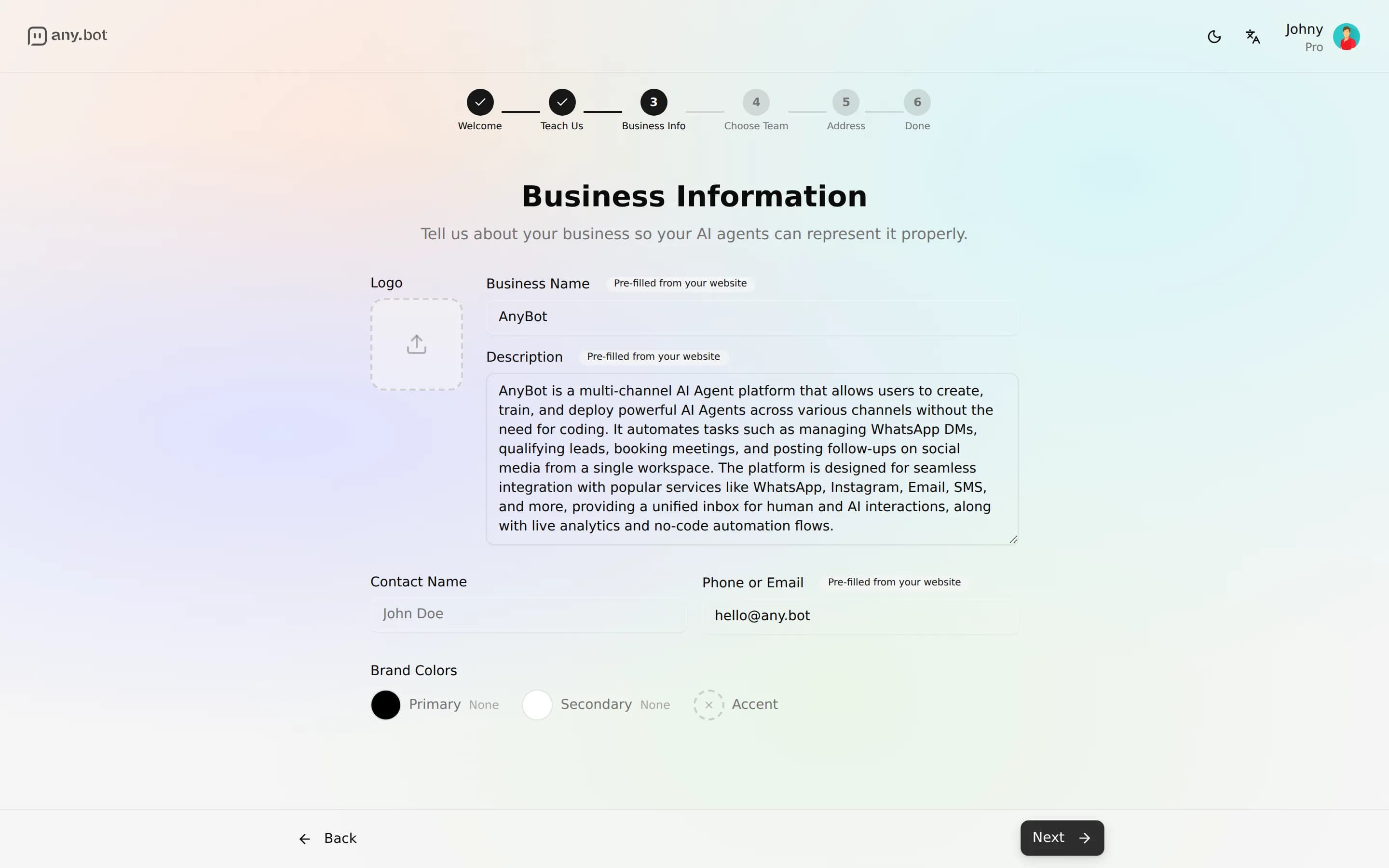
Business Information. Review and edit what the scan found: business name (required), description, contact name, phone or email, logo, and brand colors. Pre-filled fields are highlighted so you can see what was detected versus what you typed.
-
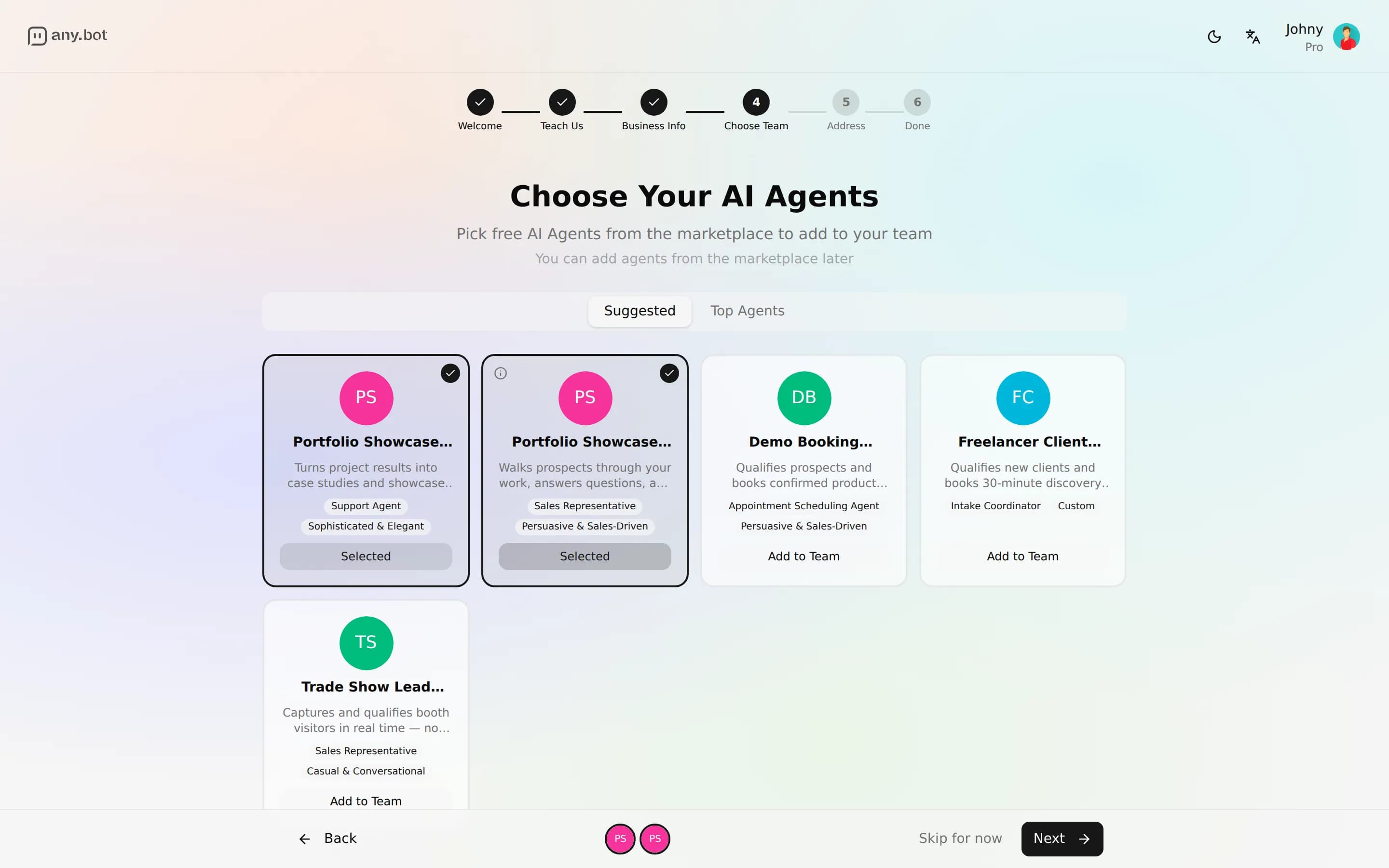
Choose Your AI Agents: pick ready-made agents from the marketplace to add to your team. This step is optional. Skip it and add agents later. Selected agents are imported into the space as you go.
-
Choose Your URL: set the slug that becomes your space's web address,
https://app.any.bot/s/your-slug. Availability is checked live as you type. -
Congratulations. Your space is ready, and the card shows its address. Jump straight in with Go to Your Space, often with a first agent waiting to test.
Choosing a slug
The slug sets your space's permanent address, https://app.any.bot/s/your-slug. You see it in the wizard, on the congratulations card, and in your spaces list, where a copy button puts it on your clipboard. A few rules the wizard enforces:
- 3 to 40 characters: lowercase letters, digits and single hyphens (no hyphen at the start or end, and never two in a row).
- Unique across AnyBot. The check shows Available, or that the address is already taken, with a suggestion you can pick in one click.
- Some words are reserved. If an address can't be used, you see "This address isn't available. Try another." Pick a different slug.
Pick something short and recognizable, usually your business name without spaces. Your display business name stays fully editable later from the Business page; treat the slug as the stable address you'll share.
Managing multiple spaces
You can run as many spaces as you need. Each space has its own plan: a second space is a second subscription.
- Space switcher: at the top of the sidebar. Open it to jump between spaces or choose Create Space to launch the wizard again.
- One space per client: the recommended pattern for agencies. Each keeps its own brand, team, billing, and audit trail, so client work never mixes.
- Isolation is automatic: switching spaces re-scopes the entire dashboard. There is no shared pool of contacts, agents, or tokens across spaces.
Troubleshooting
- The scan found nothing (or the wrong info). Some sites block crawlers or hide their content behind scripts. Just continue to Business Information and fill the fields in by hand. The scan only pre-fills, it never blocks you.
- I don't have a website. Skip the URL and either upload a document on the Teach step or type your details manually on the next step. You can add knowledge to your agents any time later.
- The scan hit a temporary limit. Scanning is rate-limited to keep things fair. If you see a "try again later" message, wait a bit and retry, or move on and add the content as agent knowledge afterward.
- My slug is already taken. Pick the suggestion, or add a word or a number to make it unique. The live check will confirm the moment it's free.
- "This address isn't available." That slug can't be used. Choose a different one.
FAQ
Do I need to prepare content first? No. The wizard can scan your live site, or you can skip the scan entirely and add knowledge later.
Can I change my space name? Yes, edit it any time from the Business page in the space.
Is my data shared between spaces? No. Spaces are isolated by design: agents, contacts, media, billing, and audit are all scoped to a single space.
Do extra spaces cost extra tokens? Each space has its own ABT allowance; see AnyBot Tokens for how metering works.