Materials & Brand Kit
Store your logos, product shots, and style references once, and feed them into every generation so results stay on-brand.
Two features keep AnyBot's generations looking like your brand instead of generic stock. The Materials Library is a store of your logos, product shots, characters, and style references that media tools pull in as visual and written context. The space-level Brand Kit applies your logo, colors and fonts to what you generate: a default identity (colors, fonts, logo, default model) that is folded into image and video refine steps. Together they mean you describe what you want and the result already knows who you are.
The Materials Library (live)
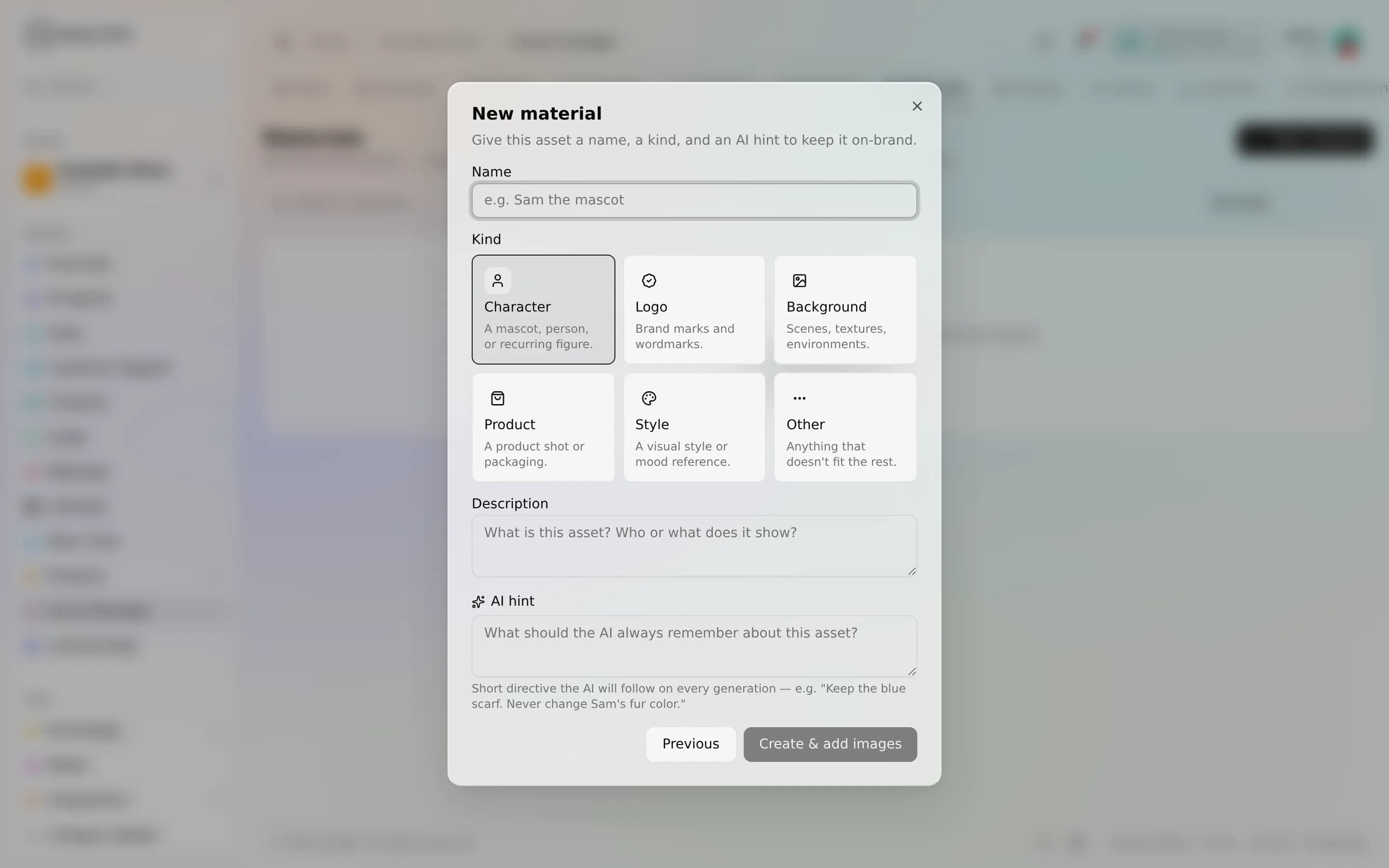
A material is a named brand asset you save once and reuse everywhere. Each one has a kind, character, logo, background, product, style, or other, an optional description and AI hint, and one or more images. You build the library in your space, then pick the materials you want when you generate.
Materials do two jobs at once:
- Text grounding. Every material's name, kind, description, and hint are folded into the prompt-refinement step as "brand materials to honor," so the model understands what your product or character is before it renders.
- Visual reference. Image-bearing materials also contribute their primary image as a reference, steering style and composition, up to the live model's reference ceiling (sixteen for today's image model). Text-only materials still ground the prompt without spending a reference slot.
This is why image generation is brand-aware rather than brand-blind: the same assets that describe your brand also show the model what it looks like.
Add a material
- Open Materials in your space.
- Click New material and pick a kind (logo, product, character, background, style, or other).
- Give it a clear name, and add a short description, and, if it helps, an AI hint telling the model how to use it.
- Upload one or more images for anything visual, such as a logo or a product shot. A material can be text-only when it's guidance rather than a picture.
- Save. The material is now available to pick in the Media Studio composer.
How materials reach a generation
When you start a generation, the materials you selected travel with the request. AnyBot enriches them, drops non-image files with a note, and forwards image URLs plus each material's text. On the generation side, text becomes prompt context and images become references, deduplicated and capped so a batch never exceeds the model's limit. Nothing you attach silently fails the job: an unusable reference is skipped with a warning, and the rest still render. For the full request lifecycle, see How generation works.
The space Brand Kit
A Brand Kit is a space-level identity you configure once: a brand description, named colors, fonts by role (heading, body, accent), curated logo and reference assets, and an optional default model per media type. You can keep more than one kit and mark one as the default for the space.
When active, the kit folds itself into a generation at the single enqueue chokepoint. Your own picked materials come first, then the kit's brand assets are appended after them, deduplicated against what you chose and clamped to the model's reference budget, and the kit's default model fills in only when you didn't choose one. Per-kit switches control whether brand text and brand reference images are injected, and a per-request toggle (on by default) lets you opt one generation out entirely. Your explicit choices always win over the kit's defaults, so turning the kit on never overrides what you asked for.
FAQ
What's the difference between a material and the Brand Kit? A material is one asset you pick per generation; the Brand Kit is a space-wide default set that applies automatically to every generation once enabled.
Do materials work for image generation today? Yes. That's live. They ground the prompt and supply references on the live image model.
Can I stop the Brand Kit for one image? Yes, a per-request switch (on by default) turns off injection for that single generation, and your picked materials still apply.
Do colors and fonts change the pixels? They're soft brand hints that inform the prompt, not a hard style filter, treat them as guidance the model honors, not a guarantee.
Where do generated files go? Into your Media Drive, metered per media billing.