Media Drive
The central, foldered home for every file in your space, organize into folders, trash and restore, control access, share with password-protected links, watch your quota, and de-duplicate.
Media Drive is where every file in your space lives: the images your agents generate, the logos and product shots you upload, documents your knowledge base draws on, and files shared into chats. It's one foldered file system, with a trash you can restore from, per-file access control, password-protected share links, a storage meter, a duplicate finder, and AI enrichment layered on top.
Before you start
- Open Media from the sidebar to reach the drive for the current space.
- Reading the drive (browse, search, download) is open to any space member. Changing it, upload, move, rename, delete, share, needs the
manage_mediapermission (one of your space's 17 role permissions) or a per-file grant. See Roles & permissions. - Add files by dragging them onto the page or clicking Upload. Images, logos, avatars, and documents are supported, up to a per-file size cap.
- Images you make in the studio land here automatically, see Image generation.
Organize into folders
- Create a folder. Click New folder, name it, and it appears in the current view. Folders nest several levels deep.
- Move things in. Drag a file or folder onto a target folder, or use Move to…. Multi-select first to move a batch at once.
- Rename or delete from a folder's menu. Deleting a folder sends it, and everything inside, to the trash together.
Alongside your own folders sits a strip of system folders, Generated Media, Team Chat Files, Logos & Avatars, Knowledge Base, and Social Materials. These are read-only, auto-populated views onto files that already live elsewhere; you browse them but don't move files into them.
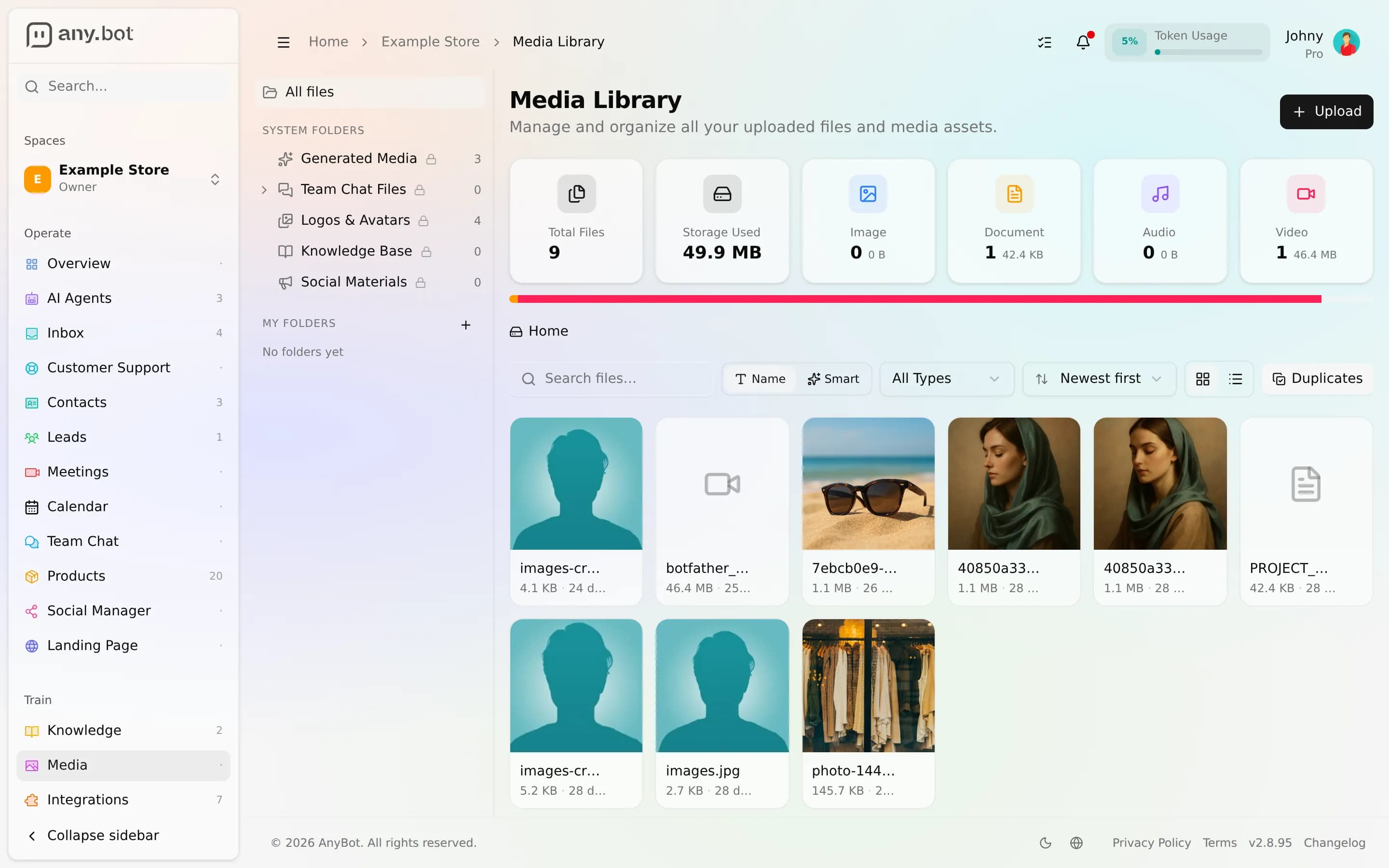
Find and enrich
A search box filters by filename and extracted text. On top of that, AnyBot can enrich your library, semantic search, auto-tags, extracted OCR text, short summaries, smart-crop suggestions, and AI rewrite for text files.
Share and control access
Media Drive separates two different ideas:
- Access grants (inside your space). Give a specific member or role viewer, editor, or manager rights on a single file or folder. A grant on a folder flows down to everything inside it. Viewer reads; editor can also rename, move, tag, and delete; manager can additionally share publicly and grant access to others.
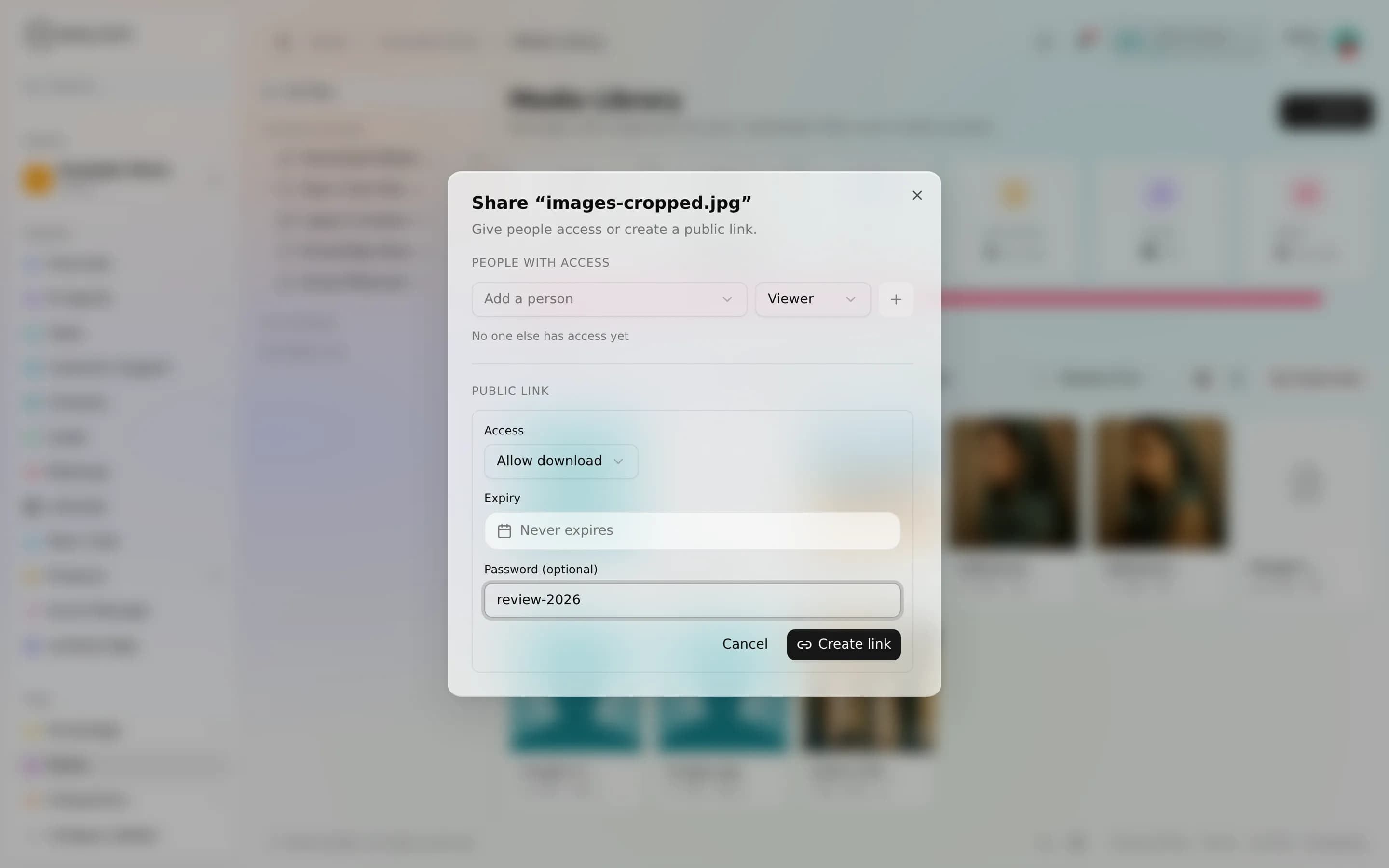
- Share links (outside your space). Create a public link, choose view or download, and optionally set a password, an expiry, or a maximum number of uses. Anyone with the link (and password, if set) can open it, no AnyBot account needed. Revoke a link any time and it stops working immediately.
Files that aren't marked public are served through signed, expiring URLs, so a link can't be guessed or hotlinked once it lapses. Every share, grant, upload, move, and delete is recorded, the platform audits 559 audited actions across the product (Audit log).
Clean up: trash, duplicates, quota
- Trash & restore. Deleting a file or folder is a soft delete. It moves to Trash, where you can restore it or permanently remove it. Items left in trash are auto-purged after a retention window (30 days by default), which also frees their storage.
- Find duplicates. The duplicate finder groups files with byte-for-byte identical contents. You choose which copy to keep and trash the rest, nothing is auto-merged.
- Storage quota. A meter shows how much of your plan's storage you've used. When it's full, new uploads are blocked with a clear message until you free space or upgrade.
AnyBot meters AI work as ABT across 6 pools. Your plan sets the monthly allowance, see ABT tokens and plans.
Plans differ by storage allowance, not by which drive features you get; some tiers are effectively unlimited. See Plans & billing.
A worked example
You've finished a set of product shots and want a client to download them, no account, and only for a week:
- Put the images in a folder (create one, then drag them in).
- Open Share on the folder, set the scope to download, add a password, and set the expiry to seven days.
- Send the link and password separately.
- When the review's done, revoke the link. It stops working at once, even before the expiry.
Limits & honesty
- Reading is open to any member; every change needs
manage_mediaor an editor/manager grant on the item. Each upload has a per-file size cap. - AI enrichment is activation-gated (above); search works today on filename and extracted text.
- Drive protection is by access control, signed URLs, and full audit, not a compliance certification. For what AnyBot does and doesn't guarantee, see Security.
Troubleshooting
- "You don't have permission" on a move or delete. You have read/viewer access only. You need
manage_mediaor an editor-or-higher grant on that item. - Upload rejected: storage limit reached. Your quota is full. Empty the trash, remove files you don't need, or move to a larger plan.
- A share link stopped working. It expired, hit its maximum uses, or was revoked. Create a fresh one.
- Search won't match by content. AI enrichment isn't enabled yet, for now search matches filename and already-extracted text only.
- A public image link suddenly 403s. That file is now space-private; re-share it via a link or ask an admin about its visibility.
FAQ
- Do generated images save here automatically? Yes, into the Generated Media system folder.
- Can I recover something I deleted? Yes, from Trash, until it's purged after the retention window.
- Are my share links private? A link works for anyone who has it; add a password, expiry, or use-limit and revoke it when you're done.
- What happens to files inside a folder I delete? They go to trash with the folder and restore together.
- Does deleting free up my quota? Permanently purging does; files sitting in trash still count until they're purged.
Next
- Image generation, where most files here come from
- Materials & Brand Kit, turn stored assets into on-brand inputs
- Media billing · Plans & billing