Inviting your team
Invite teammates by email with a role and an exact permission snapshot. Invites are single-use, expire after 7 days, show a preview before accepting, and can be revoked from the pending list.
You add people to a space by inviting them by email. Each invite carries a role and, optionally, an exact set of permissions: the same granular controls covered in Roles & permissions. Nobody joins a space by discovering it; membership only ever starts from an invite you send, so access stays deliberate.
Who can invite
Sending, editing, and revoking invites is part of team management (the manage_members permission), a capability that belongs to owners and admins only. Of the 17 permissions in the role matrix, it's one a member or viewer can never be granted, so people can't widen the team on their own. How many members a space can hold depends on your plan; once you're at the cap, free up a seat before inviting again.
Send an invite
From your space, open the Team area and its Invites tab.
- Click Invite Member.
- Enter the person's email address.
- Pick a role: Admin, Member, or Viewer. The role sets the baseline of what they'll be able to do. (You can't invite someone straight to Owner.)
- (Optional) Fine-tune the permission snapshot. Selecting a role applies its default permissions, and you can toggle individual permissions on or off. A role's denials are enforced on the backend, so anything a role can't hold stays off even if you toggle it.
- Click Send Invite.
AnyBot emails the person an invite link. If they already have an AnyBot account, they also get an in-app and push notification that they've been invited.
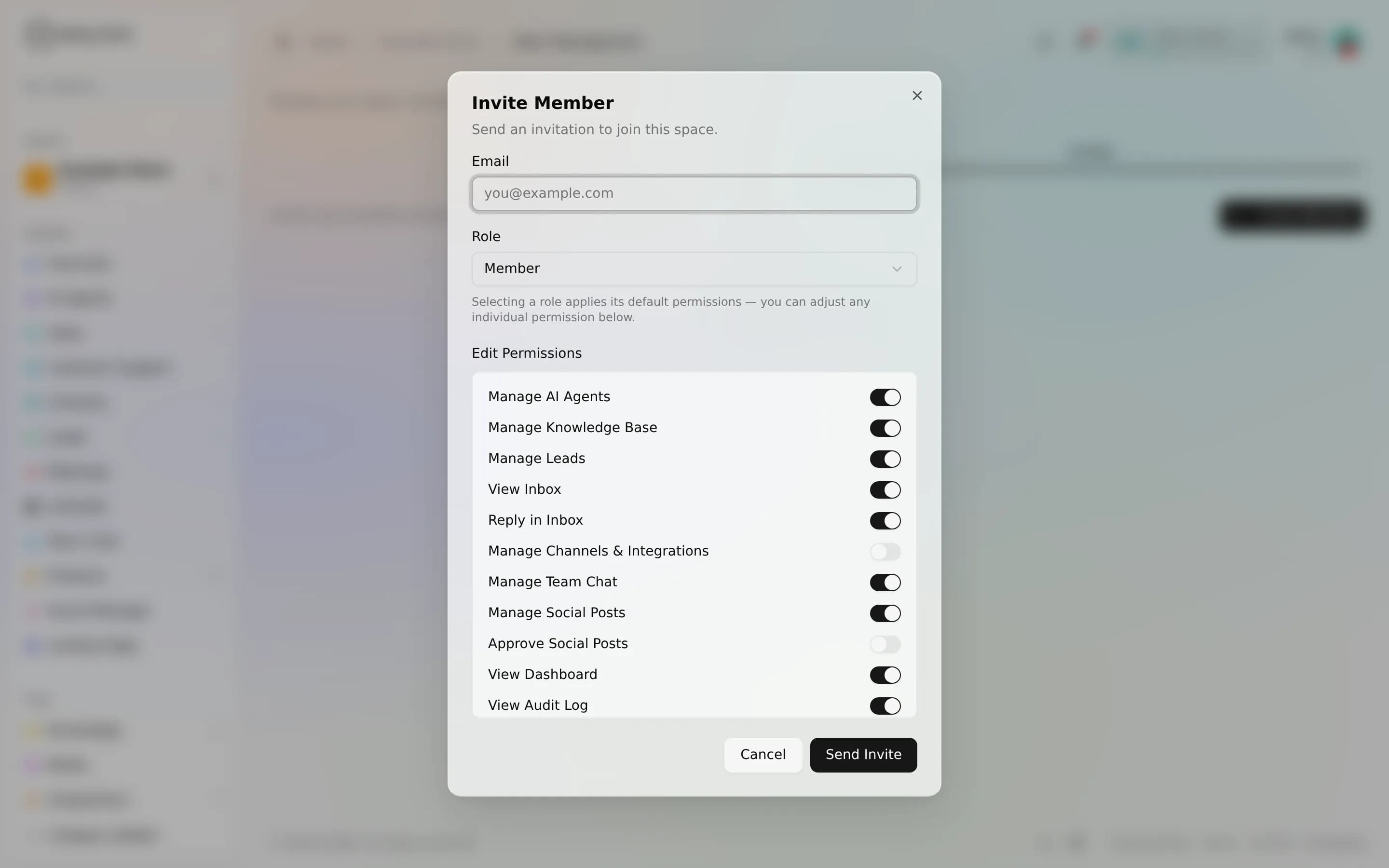
What the invite carries
The role and permission snapshot you choose are stored on the invite, not applied yet. They take effect only when the person accepts. At that moment the snapshot becomes their real membership. This means you decide someone's exact access up front, and it lands the instant they join, with no second step to remember. You can always retune a member's role and permissions later from the members screen.
The 7-day expiry
Every invite is single-use and expires 7 days after you send it. An accepted invite can't be reused, a declined one is done, and an expired link simply stops working. The invitee is told to ask for a fresh one. This keeps stray invite links from staying valid indefinitely. If someone misses the window, revoke the old invite (or just send a new one) and they get a new 7-day link.
What the invitee sees
Before accepting, the person opens a preview of what they're joining: the space's name and logo, its business profile (company, industry, website when set), a member and agent count, who invited them, the role they'd take, and when the invite expires. They can then accept or decline. Accepting must use the same email the invite was sent to; a mismatched account is refused.
Pending invites and revoking
The Invites tab lists every invite that hasn't been accepted yet, with its email, role, status, who sent it, when it was created, and when it expires. To pull one back, choose Cancel Invite. The link stops working immediately. An empty list just means there are no outstanding invitations.
Sending, accepting, declining, and revoking an invite are all recorded in the space audit log, so there's a clear trail of who invited whom and when.
FAQ
What if they never accept? The invite expires after 7 days. Revoke it or send a fresh one for a new link.
Can I change their access after they join? Yes, adjust any member's role and permissions from the members screen. See Roles & permissions.
Which email do they sign in with? The exact address you invited. Accepting from a different account is rejected.
Can I invite someone who's already on the team? No. You'll be told they're already a member, or that an invite is already pending for that email.