Planner & calendar
See every scheduled and published post on the calendar, kanban or posts list, drag to reschedule, filter with one shared filter bar, and act on posts in bulk.
The planner is the calendar view of your whole social pipeline: every post you've scheduled and everything you've already published, laid out on one grid across all your connected networks. It's where the plan → create → publish → analyze → engage loop lives day to day. You glance at the week, spot a gap, and drop a post into it. Before anything shows up here you need at least one linked account, so start with connecting accounts if you haven't.
Four ways to look at it
Switch views from the toolbar toggle:
- Month, the big-picture grid; best for spotting empty days and cadence.
- Week, a denser column-per-day layout with recommended-time overlays.
- Day, one day, hour by hour.
- List, a flat, chronological feed of posts in the current range.
Move through time with the prev / next arrows or jump back with Today. Your view, date, and filters all live in the URL, so a reload, or a link you paste to a teammate, reopens the exact same slice.
The posts list
The posts list is the standard Social posts screen. It's a table of your posts with:
- Saved views, so a slice you check often is one click away.
- Sorting, and an Engagement column that shows how each published post is doing.
- Publishing and Partially published tabs that refresh on their own while posts go out, so you can see a post that reached some accounts but not others.
- A details view with a media viewer.
Every view, list, calendar and kanban, opens the same post popup with the same actions. From the popup you can also remove a single platform from a post, undo an approval, or unschedule a post.
Filter down to what matters
One filter bar is shared by the list, the calendar and the kanban, so a filter you set follows you between views. You can stack as many filters as you like:
- Network, Instagram, Facebook, X (Twitter), LinkedIn, TikTok, and YouTube. Pick one or several to see only those platforms.
- Status, draft, in progress, pending approval, approved, scheduled, publishing, published, failed, and archived.
- Content type, post, reel, story, carousel, thread, short, or pin.
- Account, creator, label, and category, narrow to one connected account, the teammate who made the post, or your own organizing tags.
Statuses double as an approval readout: a post sitting at pending approval hasn't cleared review yet, while approved and scheduled are queued to go out. Review itself happens in approvals & collaboration.
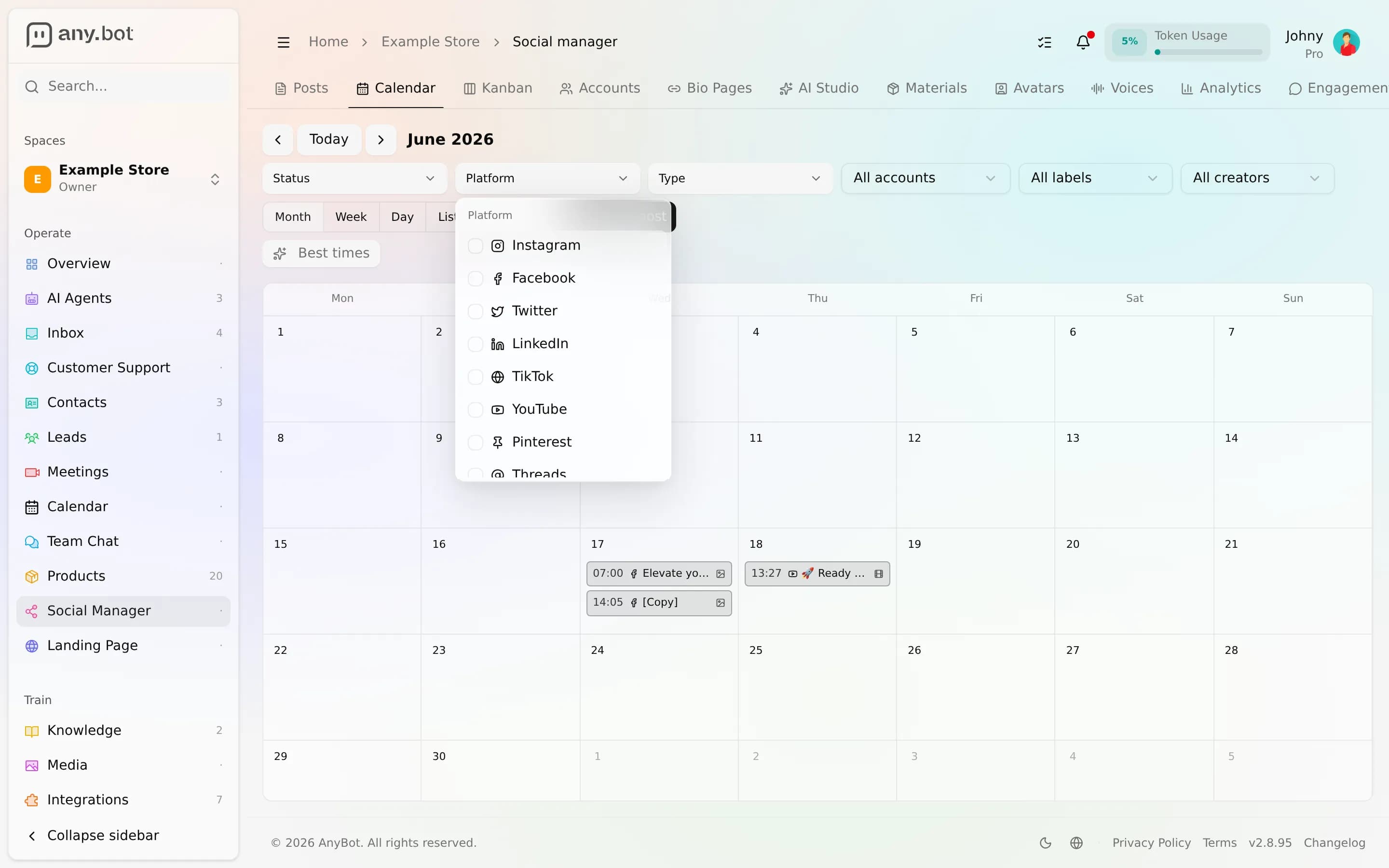
Schedule and reschedule
- Create on a day. Click an empty spot on any day and the composer opens pre-set to that date (a new post defaults to 10:00, which you can change). Draft your content, or generate it in AI Studio first, and set the publish time.
- See it land. Once scheduled, the post appears as a chip on its day, tinted by status so you can read the board at a glance.
- Drag to reschedule. Grab a chip and drop it onto another day. AnyBot keeps the post's original time-of-day and just moves the date, then saves immediately. If the new time is too soon, it's nudged to a few minutes from now so publishing accepts it.
- Fine-tune. Click a chip to open its detail panel, or edit it to reopen the full composer.
If a post has per-network variants with their own custom times, dragging moves only the post's baseline date. Those staggered per-variant times are preserved, and AnyBot flags that so the kept times aren't a surprise.
Recommended times
Toggle recommended times (the sparkle button) and the calendar overlays a heatmap of stronger days and slots for your connected accounts, so you can aim new posts at higher-traffic windows.
Work in bulk
Turn on selection mode, tick several posts, and act on them together:
- Reschedule all selected posts to one new time.
- Archive or restore posts.
- Delete posts you no longer need.
AnyBot reports how many succeeded and how many failed, so a partial result is never silent.
FAQ
Does the calendar show published posts too? Yes. It shows both scheduled and already-published posts in the range, and the status filter (or a network filter) lets you focus on just one kind.
Can I drag a post that's already published? No. A published post has already been sent, so it can't be dragged to another day. Drag-to-reschedule is for the posts still ahead of you.
Why did my dropped post jump forward a little? Publishing needs a small lead time, so a drop that lands too close to "now" is bumped a few minutes into the future.
An account's posts aren't going out. Check the account isn't errored or its queue paused, see connecting accounts and settings & automation.
Times look off by a few hours. Times are shown in your own time zone everywhere, from posts and the calendar to chats, meetings and dashboards. If your profile has no time zone yet, it's set from your browser. To change it, use the searchable time zone picker (it shows each zone's offset) in your profile.