Composer
Draft a post with an AI Agent beside you, give it a title and a first comment, attach or generate media, tailor per-platform variants and options, then schedule or publish now.
The composer is where a post comes together. You pick a format, write the copy, attach or generate visuals, choose which connected networks it goes to, and then either save it as a draft, schedule it, or publish immediately. It sits in the middle of the social loop, plan, create, publish, analyze, engage, and hands finished posts off to the planner & calendar.
Before you start
- You need the
manage_socialpermission in the space (see roles & permissions). - At least one network should be connected, the composer publishes to the accounts you've linked. You can also connect one on the spot from the publish step.
Draft a post
- Open Social → Compose. Start from a quick action (Text, Photo, Video, Reel, Story, Carousel, Thread) or describe what you want and let AI draft it for you.
- Pick a content type. Each type only offers the networks that natively support it, for example a Reel targets Instagram and Facebook, a Thread targets X, and a Short targets TikTok and YouTube.
- Give the post a title if you like (you can edit it later from the post popup). Write your body copy and add hashtags.
- Optionally add a first comment right under the caption. It's posted together with the post.
An AI Agent helps you inside the composer. It sees your current draft, so you can ask it to rewrite, tighten, or restyle and it edits in place and generates images inline. The composer shows which agent is helping you, and you can switch to another one. Your agents are also better at social posts: they write captions and hashtags for each platform, adapt one post across several platforms, and attach media. The AI Studio tools give you more content help.
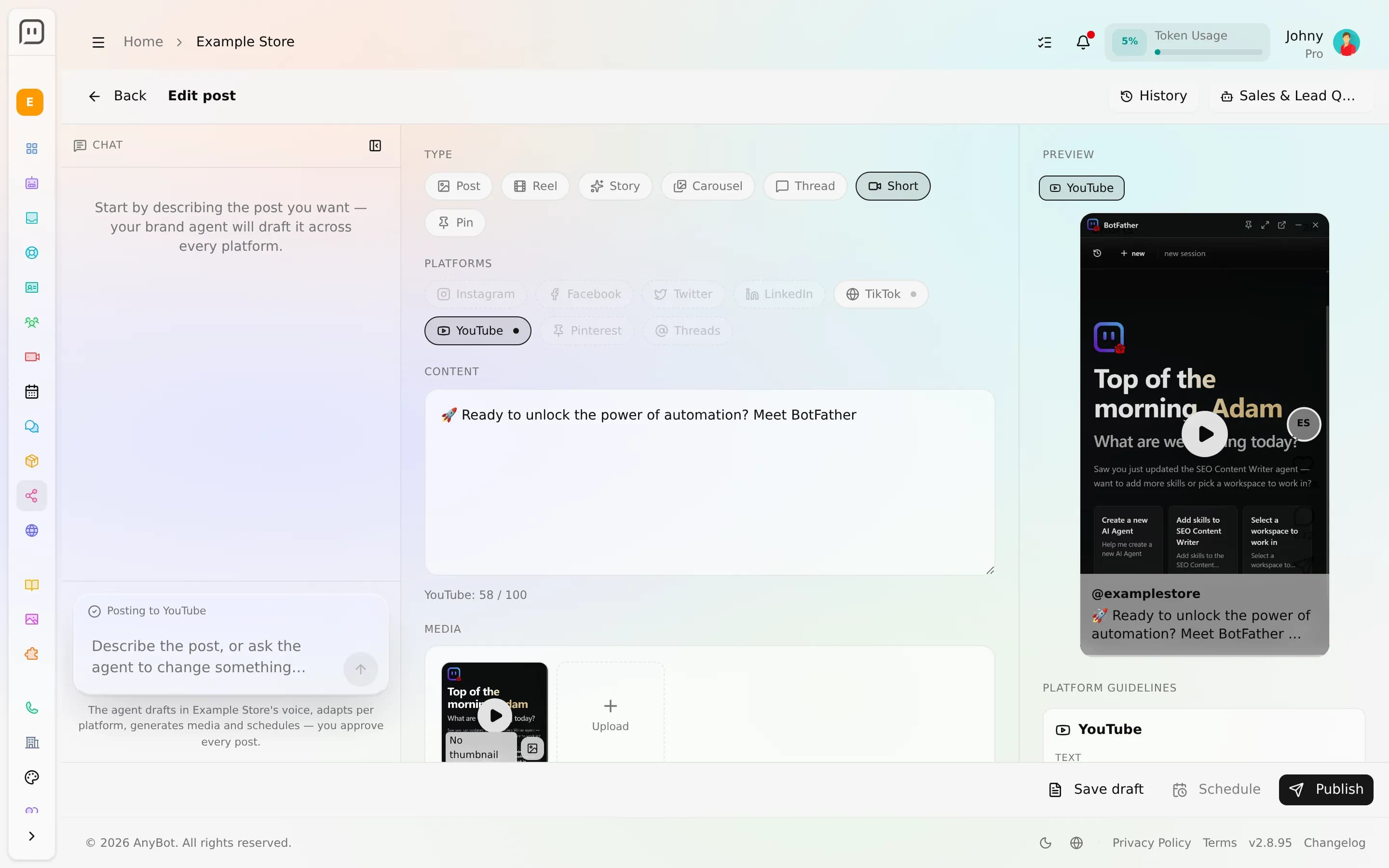
Attach media
Use the Media strip to add images or video:
- From your Media Drive, open the picker and choose an existing asset from your Media Drive.
- Generated, create an on-brand image inline and it drops straight into the post, tagged AI.
For videos you can set a custom video cover (or generate a thumbnail). On Instagram, a carousel can mix photos and videos. Only images and videos can be attached.
Target networks and tailor variants
Every targeted network starts linked to one Shared draft, so one edit reaches them all. To diverge, open a network's tab and choose Customize. That unlinks it and lets you override the body, hashtags, and first comment just for that platform. Reset to shared snaps it back to the shared copy.
Networks that expose extra native options surface them right in the tab:
Instagram  → collaborator tags, share-to-feed, carousels mixing photos and videos
Facebook   → post to a chosen Facebook Page
LinkedIn   → post to a chosen LinkedIn Page, call-to-action button + URL
TikTok     → allow comments / duet / stitch, cover frame
YouTube    → title, description, tags, category, visibility
X          → no extra options today
Where a platform supports it, you can also set a custom video cover and the post's visibility or privacy. A change you make on a platform's tab reaches every account on that platform.
Schedule or publish
At the bottom bar you have three paths:
- Save draft, keeps it in the pipeline with nothing published.
- Schedule, set a date and time in the Schedule option first, then confirm; the dispatcher publishes it automatically at that time. You can also stagger per-platform publish times.
- Publish now, pushes it live immediately.
When you schedule or publish, AnyBot works out which account to use. If one connected account fits, it's used automatically; if several fit, you pick one; if none is connected, you're asked to connect one. In spaces that require approval, an unapproved post can't be scheduled or published until it's approved.
FAQ
Why is a network greyed out? It doesn't support the content type you picked, switch the type or the network.
Do variants have to differ? No. Leave them linked and every network gets the identical Shared copy.
Can I schedule different times per network? Yes, turn on stagger and set a time on each platform tab; blank inherits the post's baseline time.
Where do published posts go? They move into the planner & calendar, and their results feed analytics.