Your first agent in 10 minutes
From an empty space to a working, tested agent, using the wizard, your website, and the live test chat.
This is the fast path: start with nothing, and in about ten minutes have an agent that answers real questions from your own content, with each tool step visible, before it ever touches a customer channel. The wizard does the heavy lifting (it can scan your website and draft an agent for you), and the built-in test chat lets you talk to it right away.
Open it in AnyBotWhat you'll build
A single agent, grounded in your business content, that you've asked a real question and watched answer live. No channel connection, no code, just the dashboard.
| Step | What you do | Time |
|---|---|---|
| 1 | Create a space (wizard scans your site) | ~4 min |
| 2 | Review the suggested agent | ~1 min |
| 3 | Add a piece of knowledge | ~2 min |
| 4 | Ask it a question in the test chat | ~2 min |
| 5 | Refine, then re-test | ~1 min |
| Total | ~10 min |
Before you start
- An AnyBot account, verified, see Create your account.
- Your website URL (the wizard scans it) or a document that describes your business.
- One fact you know your site covers. You'll use it to test grounding in Step 4.
This page owns the click-by-click. For the concepts behind each step, see Create your space and Your first agent.
Steps
1. Create a space and let it scan your site
Open the Space Creation Wizard and, on the Teach it about your business step, paste your website URL (or upload a document). Your space is created right away and the scan continues in the background.
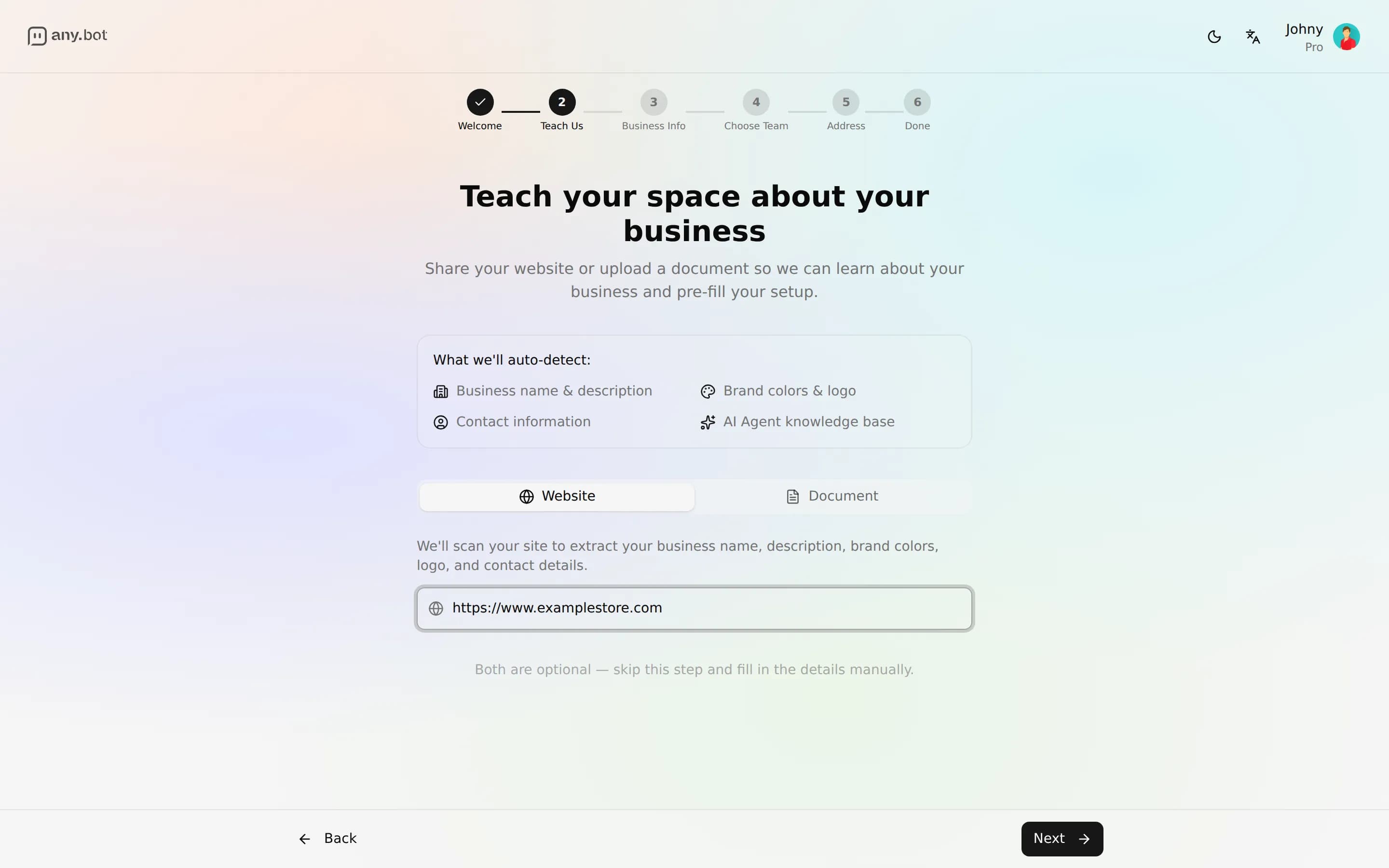
Expected result: You advance through the profile and slug steps and land inside a working space. Full walkthrough: Create your space.
2. Review the suggested agent
The wizard proposes ready-made agents based on what the scan found. Accept one, or open AI Agents in the sidebar and choose Create Agent to start fresh.
Expected result: An agent appears in your AI Agents list. Opening it shows its tabs, including Knowledge Base, with the live Chat panel alongside them (a side panel on wide screens, a Chat button on smaller ones).
3. Add a piece of knowledge
Open your agent and go to the Knowledge Base tab. Add a source, a document (PDF, Word, and similar formats) or a single website URL. Each source moves through Pending → Processing → Ready.
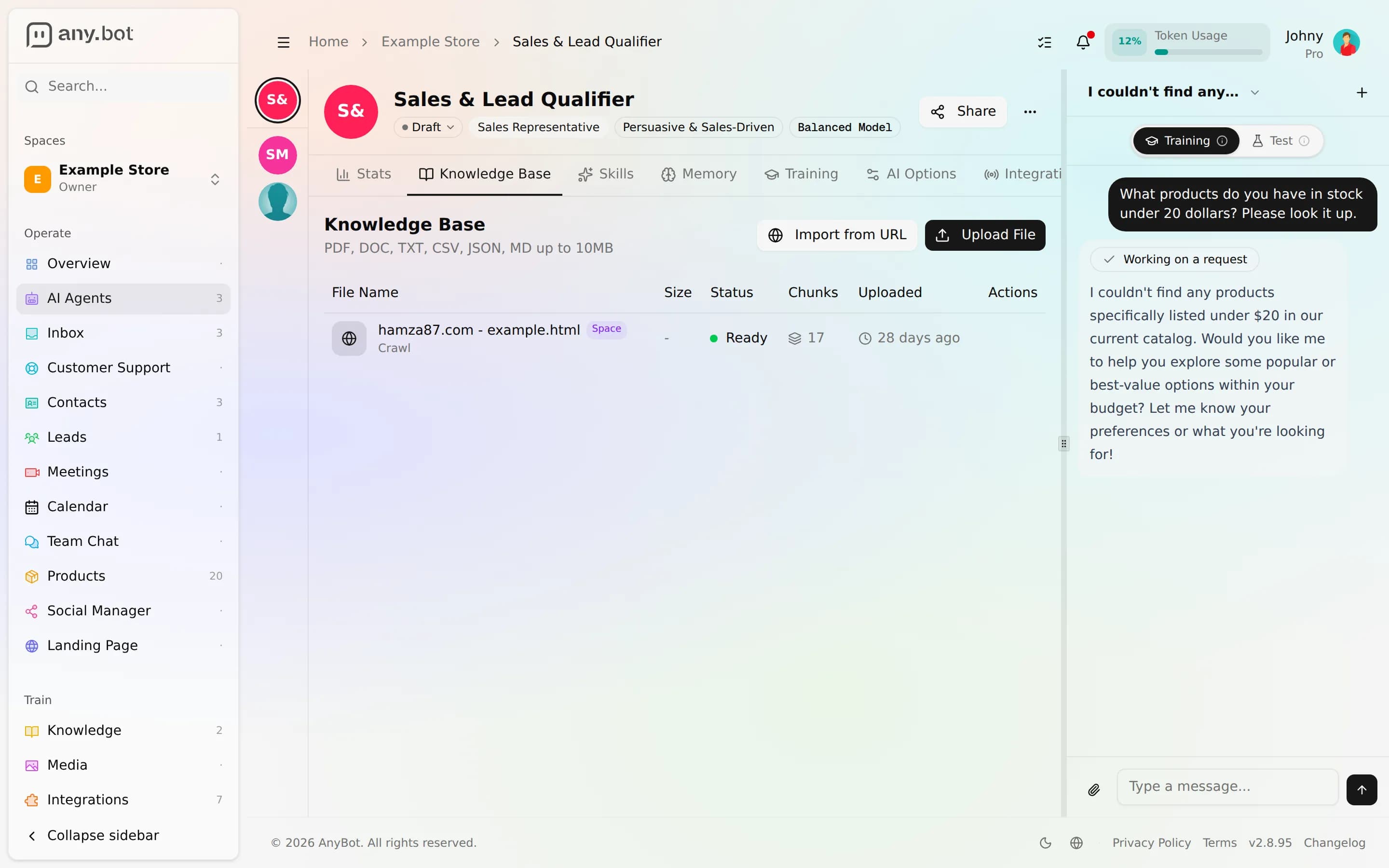
Expected result: Your source reads Ready. Details and supported formats: Knowledge base.
4. Ask it a real question
Open the live test chat, the Chat panel (a side panel on wide screens, a Chat button on smaller ones). Type a question your knowledge should cover, the reply streams in token by token, and any tool the agent calls shows as a visible step.
Expected result: A grounded answer that reflects your content, and declines or hands off when the answer isn't in your knowledge.
5. Refine, then re-test
If the tone or a boundary is off, adjust behavior & guardrails or add more knowledge, then ask again. Changes are versioned, so you can roll back a tweak that made things worse.
Expected result: The same question returns a better answer. You now have a tested agent.
A worked transcript
Asking a question the agent's knowledge covers:
You:   Do you offer weekend appointments?
Agent: Yes — we take bookings on Saturdays. Let me check what's open…
       › tool: availability (public-safe)   ← visible step
Agent: This Saturday I can offer 10:00, 13:30, or 16:00. Want me to hold one?

You:   What about a full refund after 60 days?
Agent: I don't see a refund window beyond 30 days in what I've been given,
       so I won't guess — I can pass this to the team.
The first answer is grounded and shows the tool it used. The second shows the honesty boundary: no source, no invented answer. Availability and booking are among the 27 public-safe tools that never expose your calendar itself.
Verify it works
- Your space exists and you can open it from the space switcher.
- An agent appears in the AI Agents list.
- At least one knowledge source reads Ready.
- The test chat streamed a reply grounded in your content.
- Asking something outside your knowledge made it decline or hand off, not fabricate.
Troubleshooting
- Knowledge stuck on Processing? Large or complex files take a moment. If a source fails to process, delete it and add it again; see Knowledge base.
- Agent answers "I don't know" for something you added? Confirm the source is Ready, and that the fact is actually in that page or file.
- No suggested agent after the scan? The site may have been unreadable, create the agent manually and add knowledge in Step 3.
- Reply doesn't stream? Reload the agent page and re-open the Chat panel (the Chat button on smaller screens).
What's next
- Connect WhatsApp so customers can reach your agent, one of up to 8 channels.
- Train it from your whole website, page by page.
- Testing your agent, what to check before you go live.