Configure your agent
Shape an agent's identity, name, avatar, role, style, model bundle, and free-text instructions, from the AI Options tab.
Esta página ainda não foi traduzida, exibindo a versão em inglês.
Configuring an agent is where you make it yours. On the AI Options tab you set who the agent is (its name, avatar, role, and speaking style), pick the model that powers it, and write the free-text instructions that steer everything it says. A few minutes here turns a generic assistant into one that sounds like your business.
The AI Options tab
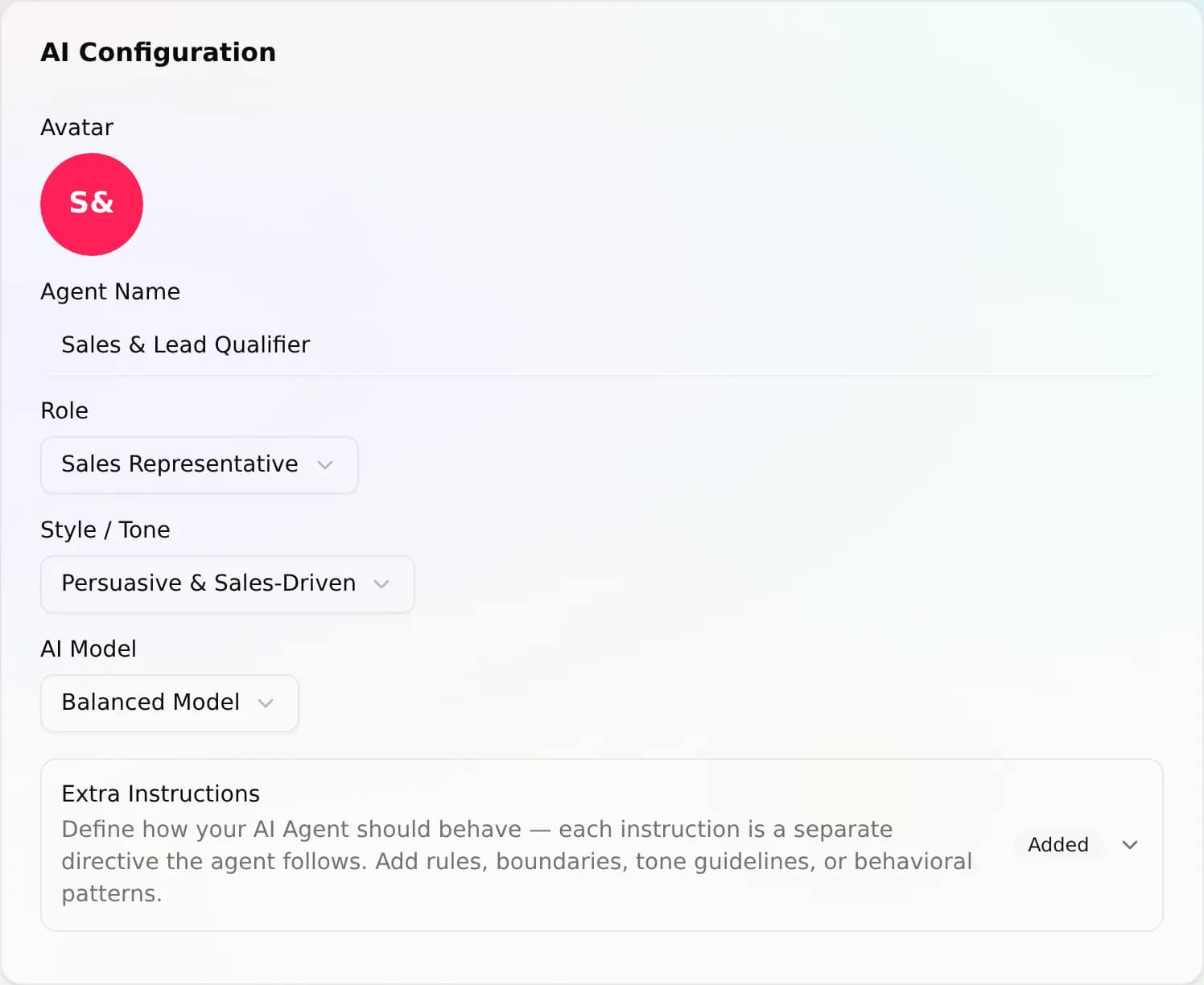
Open your agent and select AI Options. The AI Configuration card holds the agent's identity in one place:
- Name: what the agent is called across the dashboard, the inbox, and any channel it greets on.
- Avatar: the picture shown next to its replies. Pick an image from your space's media library or upload one; remove it and the agent falls back to a colored initial.
- Role: a preset that sets the agent's job and a matching base prompt. Choose one like Support Agent, Sales Representative, or Appointment Scheduling Agent, or pick Custom to describe the job in your own words.
- Style: the agent's persona and tone. Options run from Casual & Conversational and Empathetic & Reassuring to Professional & Human-like and Persuasive & Sales-Driven (again with a Custom slot).
- Model: which model bundle answers the questions (see below).
Role and style are the fast way to a solid first draft of personality; the instructions field is where you get specific.
Choose a model bundle
The agent runs on one of four model bundles rather than a single raw model: Fast Model, Balanced Model, Reasoning Model, and Smart V2. Each bundle is a small chain (a primary model plus ranked fallbacks), so if the primary provider is briefly unavailable, the next model in the chain answers instead of the conversation stalling. You pick the bundle; AnyBot handles the routing.
The fast bundle trades some depth for speed, while the reasoning and smart bundles think harder on multi-step questions. For how to choose, see Choosing a model.
Write the instructions
Below the presets is Extra instructions, a large free-text field, collapsed by default to keep the form tidy. This is the single most powerful control on the page: plain-language guidance that layers on top of the role and style. Use it to spell out what a preset can't, for example:
- boundaries (never quote an exact figure; offer to book a call instead),
- specific phrasing or a signature sign-off,
- how to handle a common edge case,
- what to do when it isn't sure.
Not sure how to start? The editor's Generate helper can draft a first version from a short brief, which you then edit. Instructions steer behavior. They don't replace your knowledge base, since facts still come only from the content you add there.
Out-of-scope and guardrails
The same tab carries the safety controls: an out-of-scope toggle (answer only from knowledge), a temperature setting, blocked topics with a custom fallback, PII redaction, and escalation sensitivity. Because these shape how far the agent will go, they have their own page. See Behavior & guardrails.
Save and version
Click Save to apply your changes. Every save is captured as a new version with a field-level diff, so you can compare against any earlier state and roll back in one click if a tweak makes things worse. That safety net is what lets you experiment freely.
Once you've saved, open the live test chat and talk to the agent as a customer would. It's the fastest way to feel whether your role, style, and instructions landed.
Next
- Choosing a model, pick the right bundle for the job
- Knowledge base, give it the facts to answer from
- Abilities (tools), let it do things, not just talk
- Testing your agent, rehearse it in the live test chat