Embed web chat on your site
Add an AI chat widget to your website in minutes, enable the Web Chat channel, copy one script tag, drop it on your site, and test the live launcher.
Cette page n’est pas encore traduite, la version anglaise est affichée.
The web chat widget is the fastest channel to go live: zero setup, no tokens, no API keys. You enable one channel, copy a script tag from the dashboard, paste it before your closing body tag, and a brand-themed launcher appears on your site. This page is the click-by-click. For the widget's full anatomy, every appearance setting, and the privacy model, see the Web chat channel reference.
What you'll build
A live AnyBot chat launcher on your own website, wired to an agent you've already tested. Visitors chat as guests, no login, replies stream live, and nothing private is ever reachable. About five minutes once your agent exists.
Before you start
- An agent that already answers well. New here? Your first agent in 10 minutes.
- Access to edit your site's HTML. You'll paste one
<script>tag. - Optional decisions: whether to restrict which domains can load the widget, and whether to ask visitors for a contact before they chat.
Steps
1. Pick or create the agent
Open AI Agents in the sidebar and open the agent you want on your site. The widget serves exactly what that agent answers, so it should already pass a test chat. Starting fresh? Build and test one first with Your first agent.
Expected result: the agent editor is open on its tabs.
2. Enable the Web Chat channel
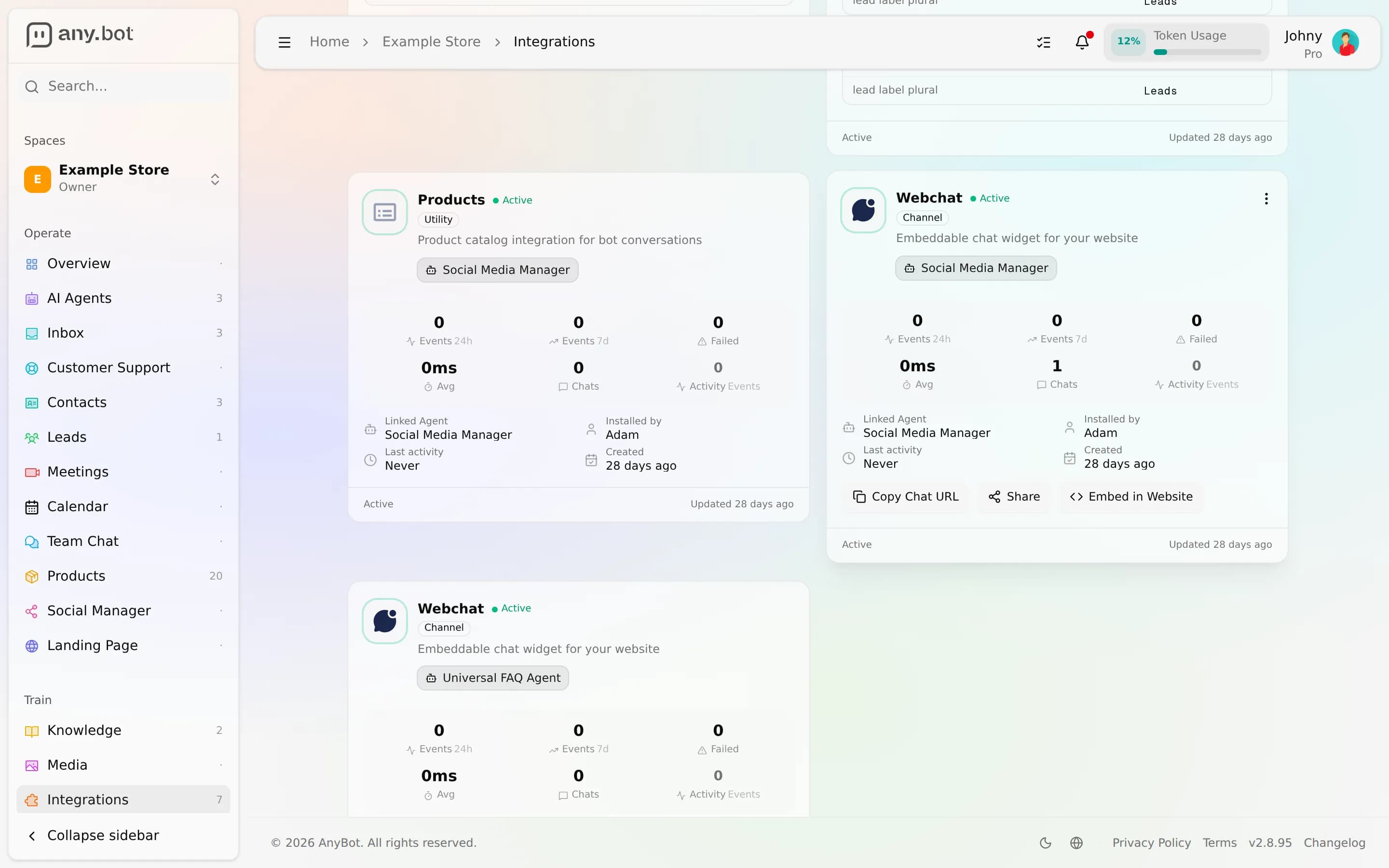
Go to the agent's Integrations tab and turn on the Web Chat card. This both powers the embed and lights up the built-in Chat with Agent test panel.
Expected result: the Web Chat card shows enabled, and the Chat panel is available alongside the editor (a side panel on wide screens, a Chat button on smaller ones).
3. Test it in the panel before you embed
Open the Chat with Agent panel and flip it to Test mode (it opens in Training mode by default), Test mode drops the admin context, so you see what a real site visitor sees. Ask a question your knowledge should cover; replies stream token by token and every tool step is visible. Fix tone or add knowledge now; see Testing your agent.
Expected result: a grounded, streamed reply that matches your content.
4. Copy the embed snippet
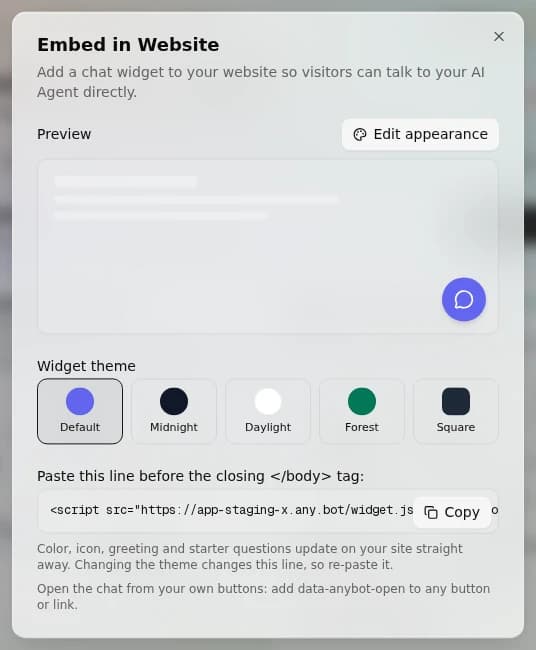
On the Web Chat card, click Embed in website, then Copy code. The snippet is one tag that carries your agent's ID; copy it verbatim, there's no key to add.
Expected result: a one-line tag on your clipboard, like this one with your agent's ID in place of
BOT_UID:
<script src="https://app.any.bot/widget.js" data-anybot="BOT_UID" async></script>If your site still has the older multi-line snippet (it starts with <!-- AnyBot Chat Widget -->), replace the whole block with this tag: the old one no longer picks up your icon and colors. The channel reference covers the tag in detail.
5. Paste it on your site
Paste the tag just before the closing </body> tag on every page where the widget should appear, then publish. On load it renders a floating launcher; clicking it opens the chat.
Expected result: a launcher button appears in the corner of your live page.
6. (Optional) open the chat from your own button
Add data-anybot-open to any button or link on your page, for example a "Chat with us" button in your header, and a click on it opens the chat:
<button type="button" data-anybot-open>Chat with us</button>Expected result: clicking your button opens the same chat panel as the launcher.
7. (Optional) lock it down and capture contacts
Back on the Web Chat channel settings:
- Allowed domains, list the sites permitted to load the widget. Any other origin is refused server-side with a
403, so it can't be bypassed by editing the snippet. An empty list means unrestricted, and your own dashboard origin is always allowed. - Pre-chat capture, ask for any of name, email, or phone before the first message; the values seed the contact. It's one of the deliberate public-safe writes.
Both take effect without re-pasting the tag.
8. Test the live widget
Open your published page in a fresh browser (or an incognito window) so you're an anonymous visitor, click the launcher, and send a message.
Expected result: the panel opens, your message sends, and the agent streams a reply, as a guest, with no login.
Verify it works
- The Web Chat channel is enabled on the agent.
- The launcher button appears on your live page.
- Clicking it opens the chat and a test message gets a streamed reply.
- If you set allowed domains, the widget loads on those and is refused elsewhere.
Troubleshooting
- Launcher doesn't appear, confirm the
<script>is before</body>and that the Web Chat channel is enabled for this agent. 403when the widget loads, the page's domain isn't in the allowed-domains list; add it, or clear the list to go unrestricted.- Launcher shows the default color and icon, the page still has the older multi-line snippet; replace it with the one-line tag from Copy code.
- Style or greeting changes didn't show, the widget reads settings on each load; hard-refresh the page. You don't need to re-paste the tag, except after changing the theme.
- Visitors stuck on a form, pre-chat capture is on; every listed field is required before chat starts.
What's next
- Web chat channel reference, the embed tag, opening the chat from your own buttons, every appearance setting, and the public-safe privacy model.
- Channel settings, greeting, business hours, and out-of-hours.
- Connect more channels, put the same agent on WhatsApp, Slack, SMS, and the rest of the 8 channels.