Slack
Connect your Slack app so the agent answers DMs and @mentions in your workspace, and note it's also a separate read-only Slack tool family.
Diese Seite ist noch nicht übersetzt – die englische Fassung wird angezeigt.
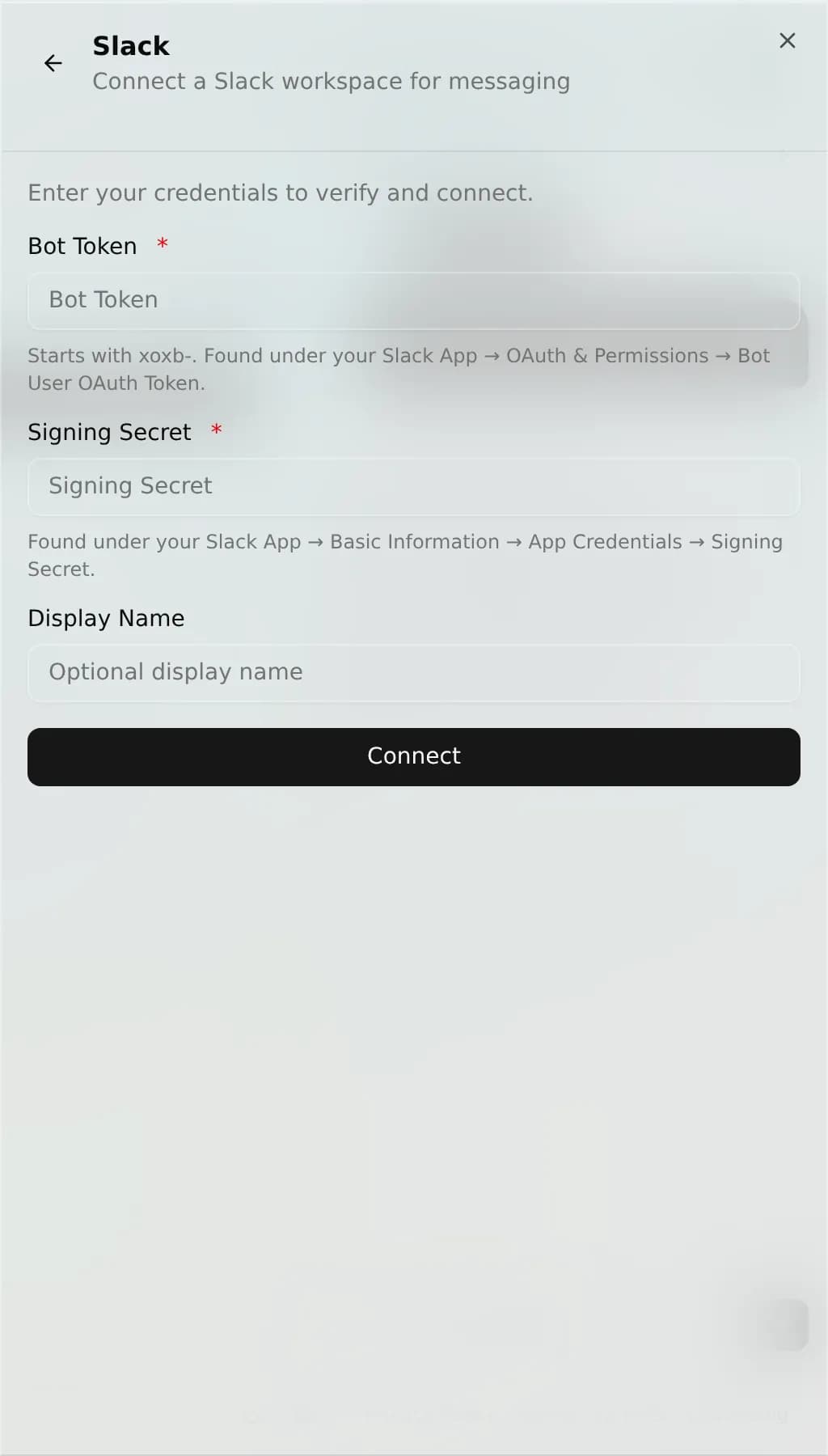
Slack connects by pasting your Slack app's Bot Token and Signing Secret and turning on Event Subscriptions. There is no one-click OAuth. Your agent then replies to direct messages and to channel messages that @mention it, follows the conversation into threads, and handles image, audio, and file attachments, but it does not read or answer plain channel chatter, only what is addressed to it. Two things set Slack apart from most channels: it does not use the shared channel-settings block, and the same connection also powers a read-only Slack tool family under Integrations.
Before you start
- A Slack app in the workspace you want to connect (create one from Slack's app dashboard).
- Its Bot Token and Signing Secret. You paste both during setup.
- Permission to edit that app's Event Subscriptions and OAuth scopes.
- The bot token needs the
chat:writeandchat:write.publicscopes so it can reply in channels it has not been invited to.
You can connect more than one workspace. Each Slack app is its own channel.
Connect
- Open (or create) your Slack app and copy its Bot Token and Signing Secret.
- In AnyBot, add the Slack channel and paste both. AnyBot validates the token right away. A wrong token is rejected on the spot.
- Copy the Webhook (Request) URL AnyBot gives you. In your Slack app's Event Subscriptions, toggle it on and paste the URL into the Request URL field. Slack verifies it automatically.
- Under Subscribe to bot events, add
app_mention,message.im, andmember_joined_channel, then save and reinstall the app.
On this channel
| Direction | Supported |
|---|---|
| Receives | Text, images, audio, and file attachments (the first file on a message) |
| Sends | Text, threaded replies, and uploaded files or media |
- Where it replies: DMs (always) and channel messages that @mention it. Once it is part of a thread it keeps replying in that thread; plain channel chatter it ignores.
- When added to a channel: it posts a short greeting introducing itself and noting that it only answers @mentions.
- Threads: replies stay in-thread on the original message.
Channel settings
Slack does not use the shared auto-reply / greeting / business-hours / reply-rate block that most channels share. Its behavior is fixed by the connection instead: it answers DMs and @mentions, and greets a channel when it is first added. There is no per-channel Settings tab to configure here. See Channel settings for which channels do share that block and why Slack sits outside it.
Also a tool: read-only Slack
The same Slack connection doubles as a read-only tool family under Integrations. As tools your agent can list channels, read channel and thread history, look up users, and search messages, but it never posts through them. Keep the two straight: the channel lets the agent talk in Slack (DMs and @mentions); the tools let it read Slack while working a task. Connecting Slack here enables both.
Troubleshooting
- The Request URL won't verify. Confirm the Signing Secret matches your Slack app and the URL is the current one AnyBot shows. AnyBot answers Slack's verification challenge automatically, so a failure usually means the wrong secret or a stale URL.
- The bot ignores channel messages. It only answers @mentions. Make sure you mentioned it and that
app_mentionis subscribed. To reply in a channel it was never invited to, the token needschat:write.public. - Replies work in DMs but not channels (or vice-versa). Check that both
message.im(DMs) andapp_mention(mentions) are subscribed under bot events. - Events get dropped. Slack requests older than five minutes are rejected as replay protection. A badly-skewed server clock can trigger this.
- Contacts show as IDs, not names. Slack does not include display names in the event payload, so the inbox may show a Slack user ID until it is resolved.
- Edits and deletions do nothing. The adapter skips message edits, deletions, and bot-posted messages by design.
FAQ
Does the agent read everything in Slack? No, as a channel it only sees DMs and messages that @mention it.
Can I connect more than one workspace? Yes, each Slack app is its own channel.
Is this the same as the Slack integration tools? Related but separate: those tools are read-only and never post. See the section above.
Next
- Channel settings: the shared block Slack sits outside of
- Integrations: the read-only Slack tool family this connection also enables
- Channels overview: all 8 channels and the one unified inbox
Telegram
Verbinde Telegram, indem du ein Bot-Token aus Telegrams eigenem @BotFather einfügst. Dein Agent bekommt seine eigene Bot-Identität und antwortet in Gruppen bei @mention.
Verbinde ein Postfach per Gmail-Anmeldung oder IMAP/SMTP (oft ein App-Passwort). Eingehende Mails werden zu Unterhaltungen in deinem Posteingang, und der Agent antwortet per E-Mail.